



by Joe Harris, Sage X3 Technical Team Lead, Net at Work
A recently disclosed MongoDB vulnerability (CVE-2025-14847), informally known as “MongoBleed,” impacts nearly all Sage X3 environments. The issue involves a specific MongoDB compression method that may allow an unauthorized client to access memory, and it has been actively exploited in the wild. While the risk is reduced for deployments where MongoDB is protected behind an internal firewall, it is not fully eliminated.
To address this vulnerability, MongoDB recommends using alternative compression protocols or disabling compression entirely as a workaround. Sage has released hotfix update editions of MongoDB for versions 4, 7, and 8, covering multiple patch levels of Sage X3 V12. For customers who choose not to apply the hotfix—or for earlier Sage X3 versions where no hotfix will be released—Sage recommends updating the MongoDB configuration to disable the affected compression method. Net at Work has tested and validated this mitigation when implemented using the procedures outlined below.
Please note that applying this configuration change requires restarting both the Syracuse and MongoDB components of Sage X3. This work should only be performed during a planned maintenance window when all users are logged out of the system.
Part 1: Changes to the mongodb.conf file
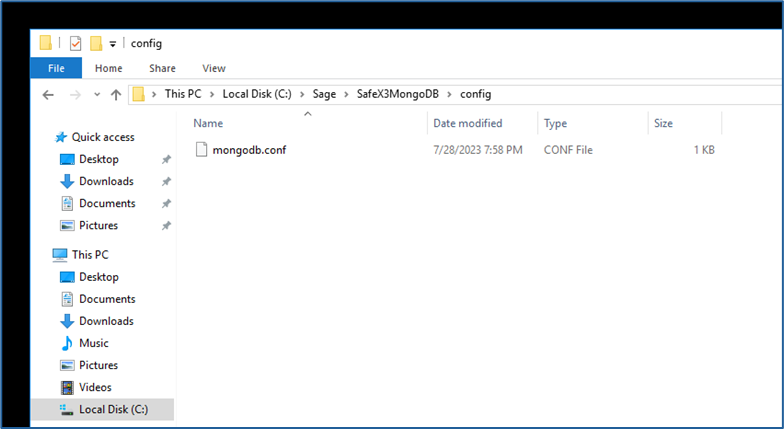
- Locate the file named “mongodb.conf” with your X3 instance’s MongoDB installation folder. It will be located in a subfolder named “config”
- Example: Sage\MongoDBComponent\config
- Different releases of the MongoDB component over the years have had different default naming conventions for the component folder. “MongoDBComponent” is the current standard and has been used consistently for the last several years and is the most common variant. If your X3 instance is older, your MongoDB folder may be named something like “MongoDB” or “SafeX3MongoDB” but it should still have a subfolder named “config” and a file named “mongodb.conf”.
- Copy the file, naming the copy something like “mongodb_original.conf” to save as a backup in case you need to revert to the unmodified version
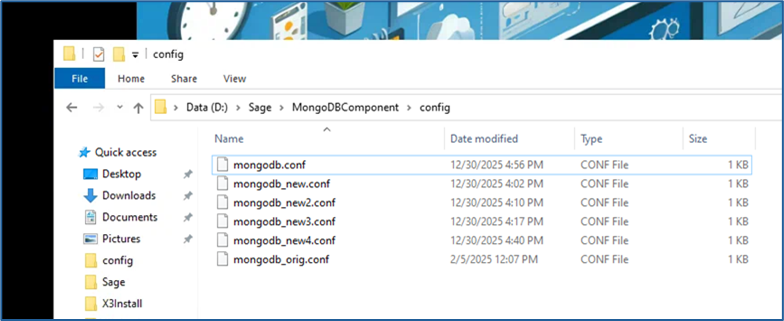
- It is imperative that this backup be made before any alterations to the file take place. Any issue with the syntax and layout of the config file will cause MongoDB to not restart successfully. If you are unable to restart the MongoDB service and no solution to the issue can be found, rename this backup as “mongodb.conf” to bring the MongoDB service back online.
- A successful update of this file will require an advanced text editor such as Notepad++. Sage and Net At Work recommend Notepad++ for its wide-ranging utility and typically install it on every X3 server as part of a standard deployment. If you do not have it installed on your MongoDB server, it can be downloaded for free from the publisher here.
- Any other text editor that can display space, tab, and end of line symbols can be used instead if that is preferred, though the rest of these instructions assume use of Notepad++. It is NOT recommended to use standard Microsoft Notepad for this change, as it lacks functionality to validate space and tab formatting.
- Open the “mongodb.conf” file in Notepad++
- It should look similar to this, with file paths and folder names specific to your instance:
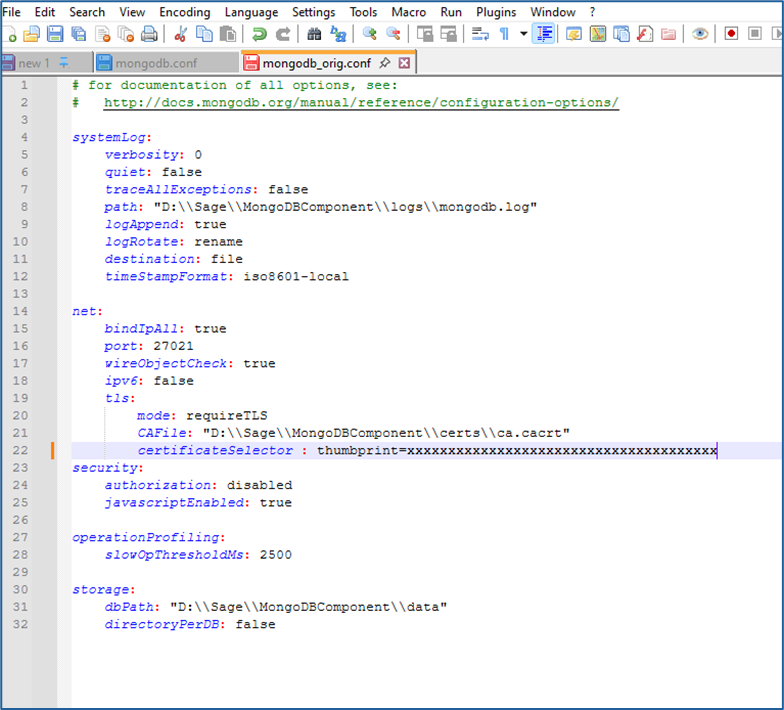
- It should look similar to this, with file paths and folder names specific to your instance:
- On the upper tool bar, select View – Show Symbol – Show Space and Tab and View – Show Symbol – Show End of Line
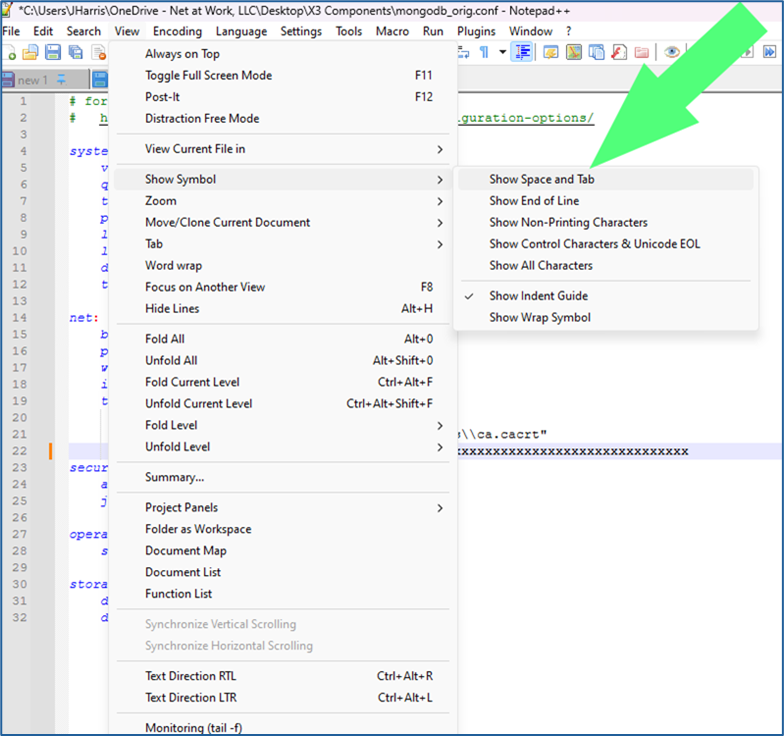
- Once these two views have been selected, your file should appear like the following:
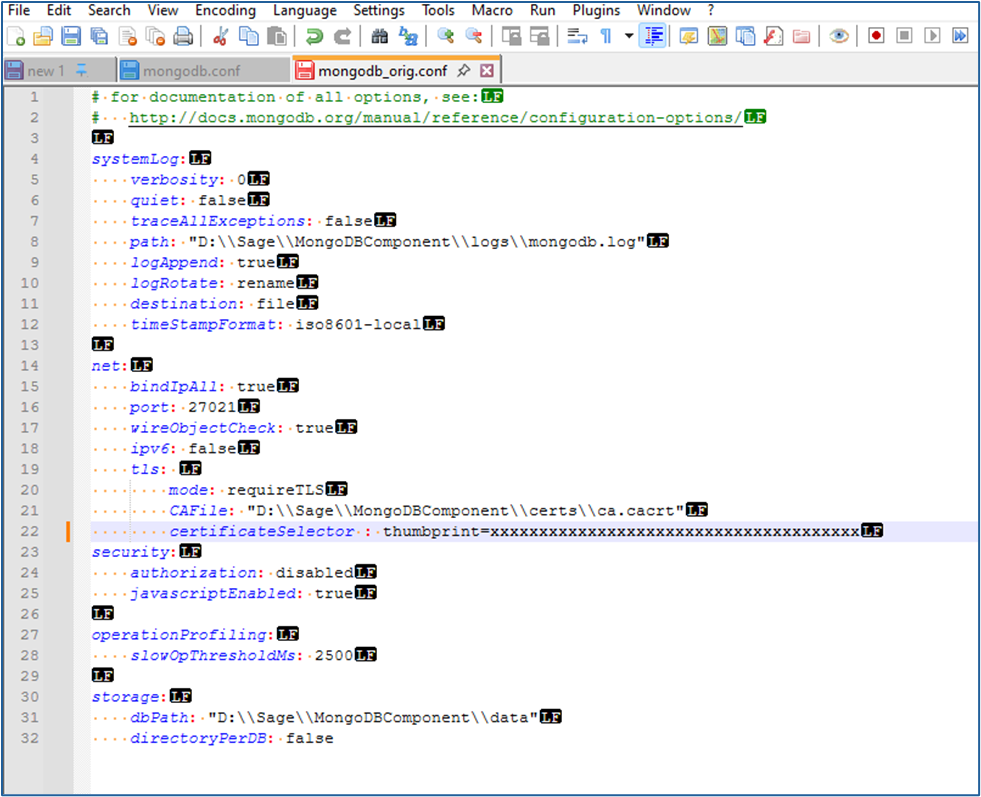
- You should see yellow dots denoting spaces, and the “LF” symbol at the end of each line
- Some older versions of Notepad++ only allow you to select one additional symbol view or the other. If your version only allows this, download and install the latest version of Notepad++ and use it. Both character views need to be seen simultaneously
- You should see yellow dots denoting spaces, and the “LF” symbol at the end of each line
- Within the section of the file headed as “net:” and below the line containing “ipv6: false” and above the line containing “tls:” add an additional line.
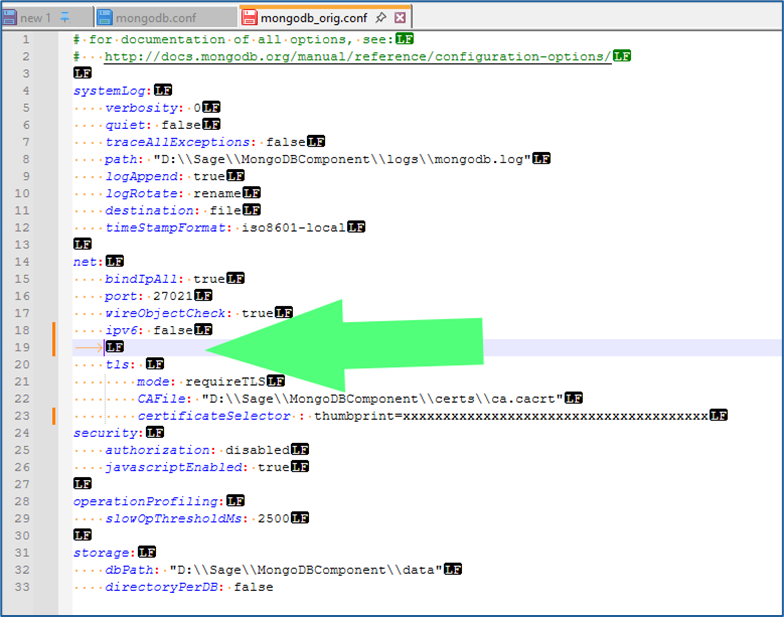
- NOTE: The new line has been added with a TAB rather than spaces. That’s what the yellow arrow symbol in the screenshot above indicates. The tab now needs to be removed, and spaces added in its place:
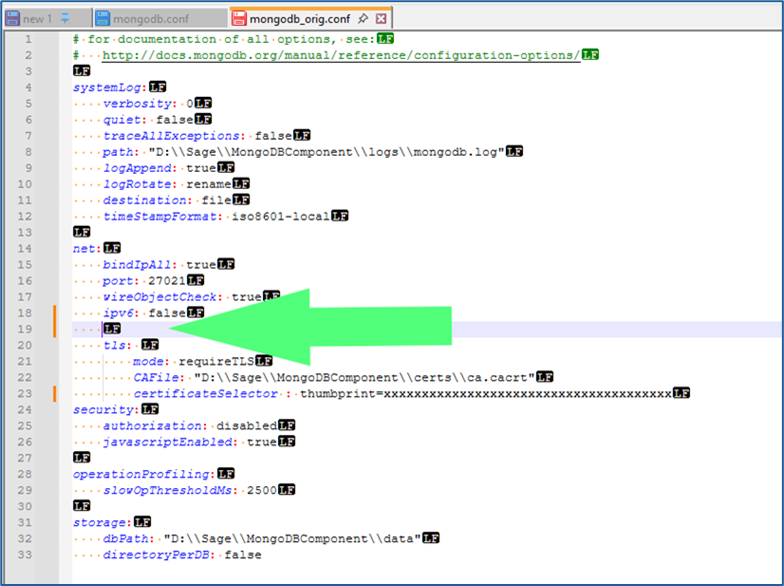
- NOTE: The new line has been added with a TAB rather than spaces. That’s what the yellow arrow symbol in the screenshot above indicates. The tab now needs to be removed, and spaces added in its place:
- Add the following on this line, without the quotation marks, but with the colon:
- “Compression:”
- The beginning of this entry should align precisely with the lines above and below it:
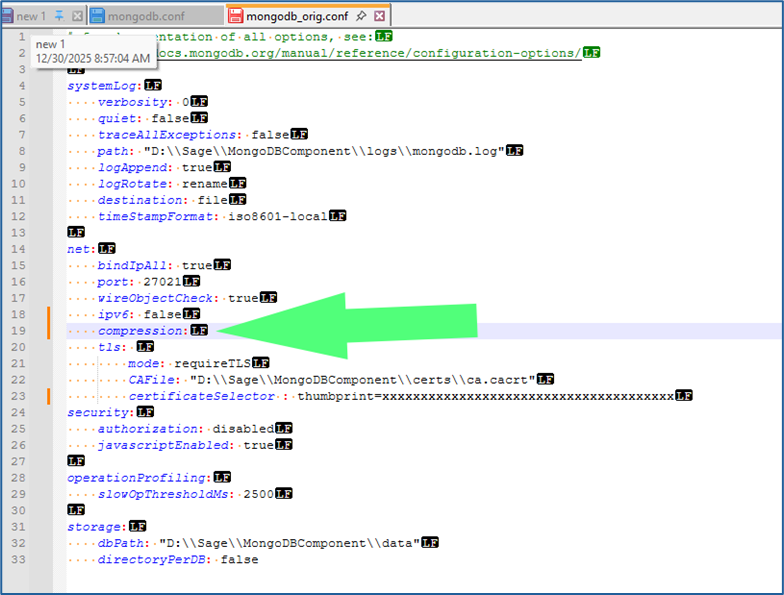
- The beginning of this entry should align precisely with the lines above and below it:
- “Compression:”
- Add another line below “compression:” and above “tls:”
- Repeat step 7 to remove the tab character and replace with spaces. This line should contain additional spaces so that it aligns with the lines below “tls:” such as “mode:” and “CAFile:”
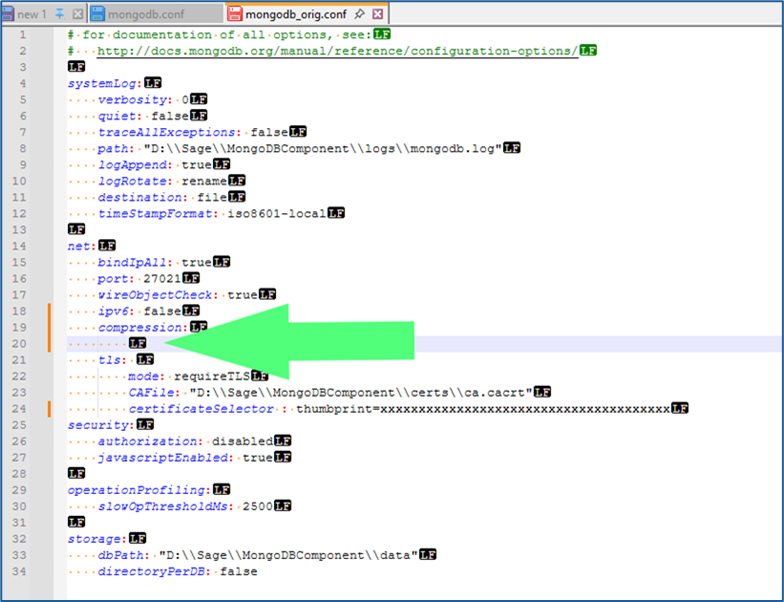
- Repeat step 7 to remove the tab character and replace with spaces. This line should contain additional spaces so that it aligns with the lines below “tls:” such as “mode:” and “CAFile:”
- Add the following text, without the quotation marks but including the colon
- “Compressors:”
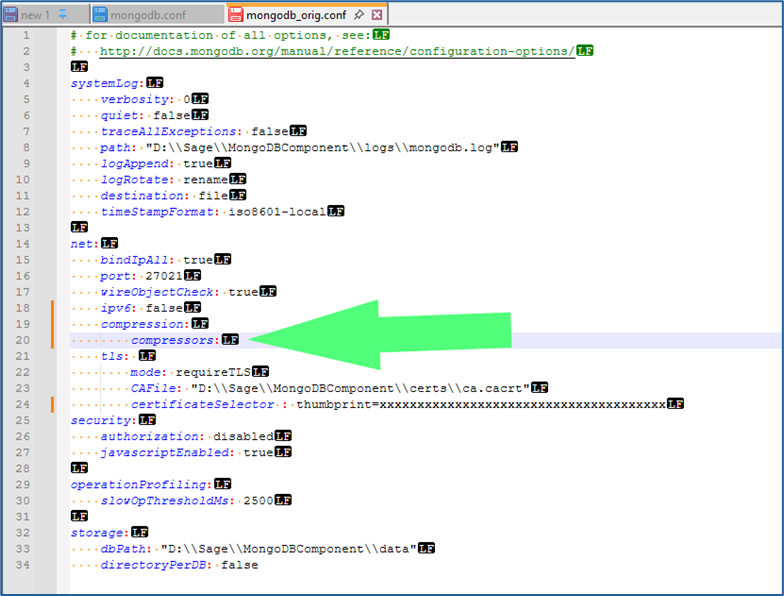
- “Compressors:”
- Add the following text, depending on preference and situation, following “compressors:” and a single space (without quotation marks)
- “Disabled”
- Use this to disable all compression by MongoDB. This is Sage’s suggestion for all instances, and Net At Work’s recommendation if your MongoDB instance is on the same server as your Syracuse webhost component, and no other Syracuse webhosts are part of the solution
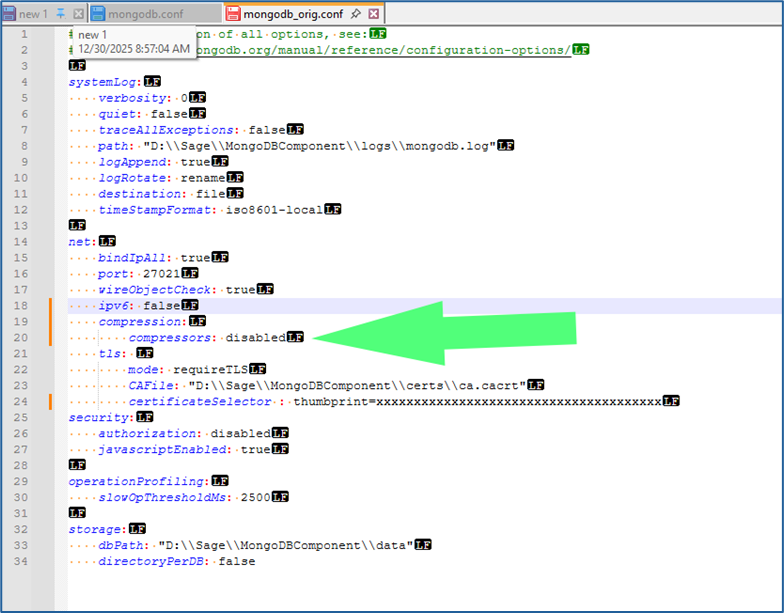
- “snappy,zstd”
- Use this to allow MongoDB to continue to use the Snappy and ZSTD compression methods, while disabling the ZLIB compression method, which is the one affected by the security vulnerability
- This allows MongoDB to continue using data compression, which it typically uses when communicating across the local network to remote Syracuse instances. Use this method if you wish to continue allowing MongoDB to use compression methods unaffected by the announced vulnerability
- “snappy”
- Some older versions of MongoDB and X3, such as X3 V11, do not include the ZSTD compression method and can only use the Snappy method. Use this and omit the “,zstd” if you are on X3 V11 or older and wish to continue to use data compression in MongoDB
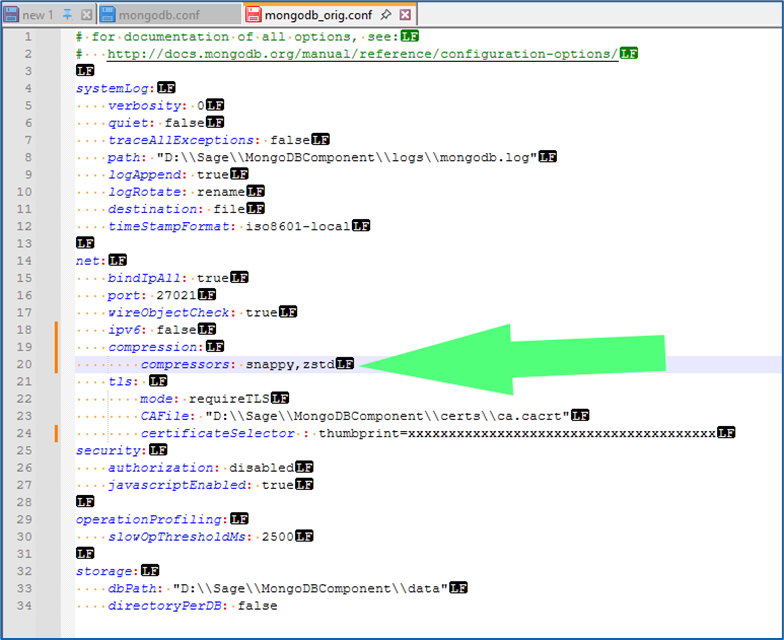
- Some older versions of MongoDB and X3, such as X3 V11, do not include the ZSTD compression method and can only use the Snappy method. Use this and omit the “,zstd” if you are on X3 V11 or older and wish to continue to use data compression in MongoDB
- Use this to disable all compression by MongoDB. This is Sage’s suggestion for all instances, and Net At Work’s recommendation if your MongoDB instance is on the same server as your Syracuse webhost component, and no other Syracuse webhosts are part of the solution
- “Disabled”
- Verify that the correct spacing, alignment, and line returns are in place so that it matches the example screenshots exactly. Misaligned spacing, incorrect positioning, or the presence of tabs instead of spaces will prevent MongoDB from running
- Save the updated file
- Note that the updated configuration will only go into effect once the MongoDB service has been restarted. It does not go into effect immediately.
Part 2: Shutdown of X3 and Components
- The following procedure is for how to perform a clean shutdown of X3. This should be done prior to restarting MongoDB to pick up the modifications to the config file to mitigate the vulnerability. If you are already familiar with this process, you can skip to section three.
- Log into X3 and access your Production folder.
- Use the compass icon above to get to the X3 Menu
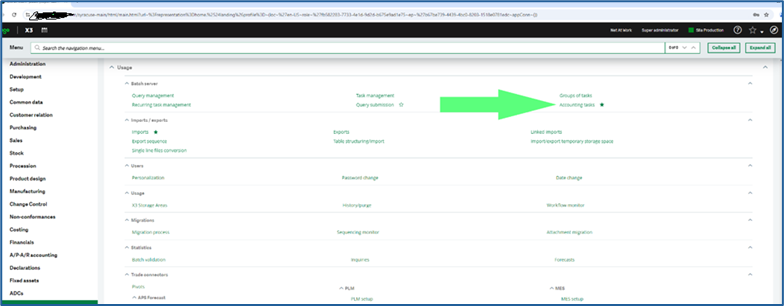
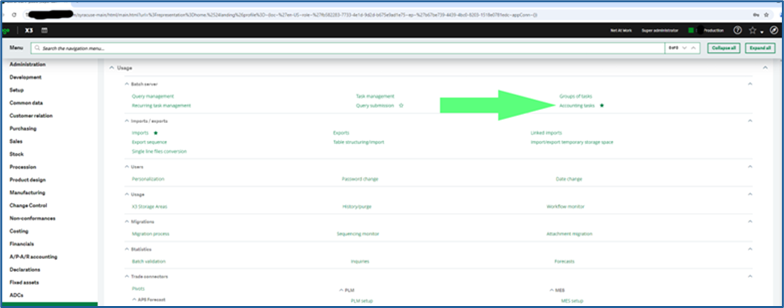
- Navigate to Usage>Batch Server > Accounting tasks
- Click the Deactivate button
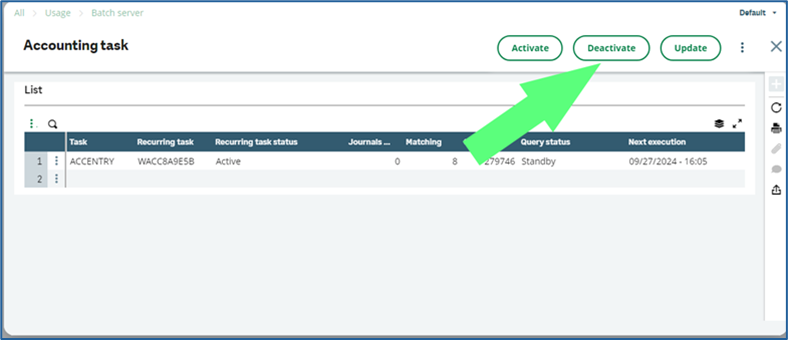
- Use “X” the button to back out of the Accounting task screen
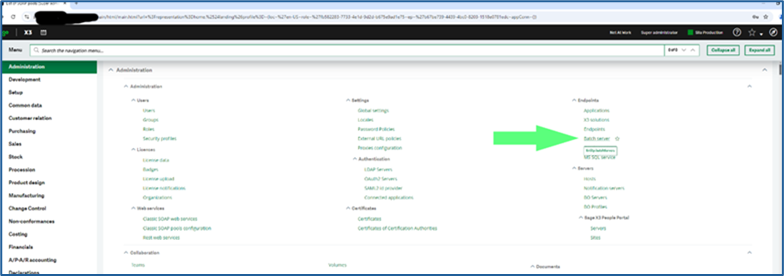
- Navigate to Administration > Endpoints > Batch server
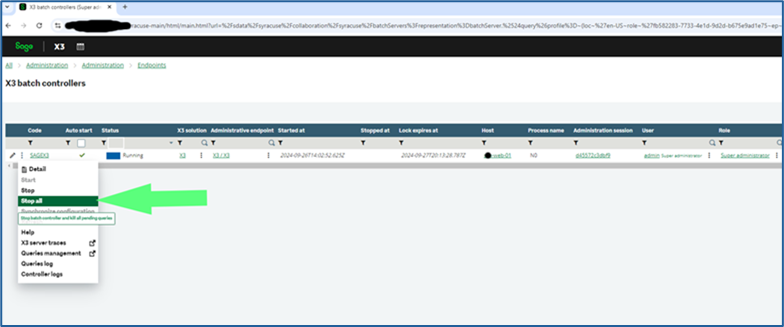
- Click on the 3 vertical dots and select “Stop All” to stop the batch server
- Stop WEB Pool Services
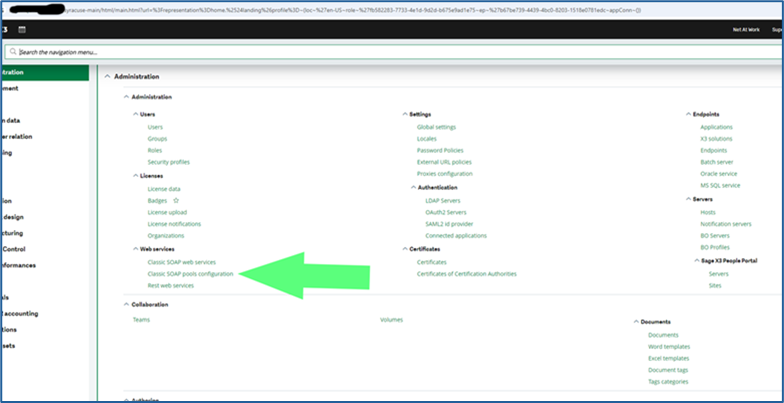
- X3 -> Administration -> Administration -> Web services -> Classic SOAP pools Configuration
- Select the triple dots on each of the listed pools that have the \/ icon (indicating that they are running) next to Alias and click Stop
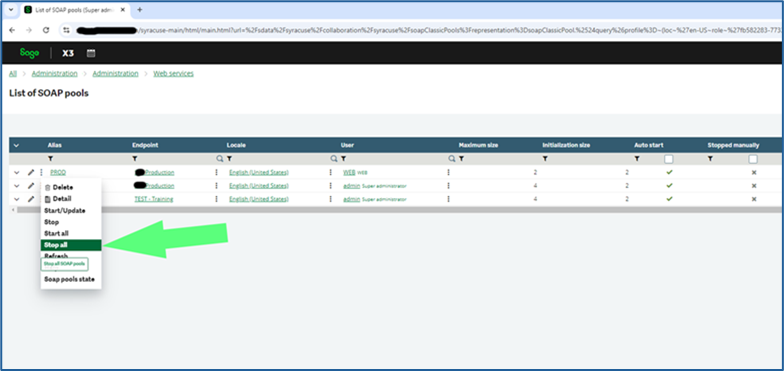
- Click the Trashcan icon on each of the notification windows once each has confirmed stopped to clear the message from your screen.
- Connect to the Windows desktop of your Syracuse server (or servers)
- Open Services.msc
- Stop the Syracuse service
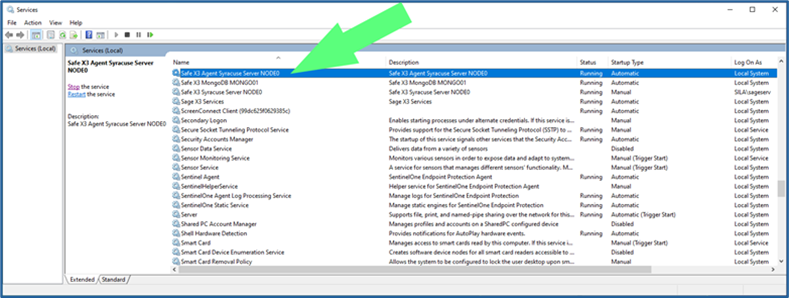
- For versions of X3 prior to V12 P36, there are two services, one named “Safe X3 Agent Syracuse Server NODEx” and one named “Safe X3 Syracuse Server NODEx”
- The “x” in the names above represent a number, usually 0 but sometimes 1, 2, 3, 4, etc.
- The “x” in the names above represent a number, usually 0 but sometimes 1, 2, 3, 4, etc.
- Stop the service named “Safe X3 Agent Syracuse Server NODEx”
- This service controls the “Safe X3 Syracuse Server NODEx” service as well – stopping the Agent service will also stop the NODEx service.
- If this service hangs up during the stop procedure, open Task Manager, go to the Details tab, select each instance of the “node.exe” process, and click End Task
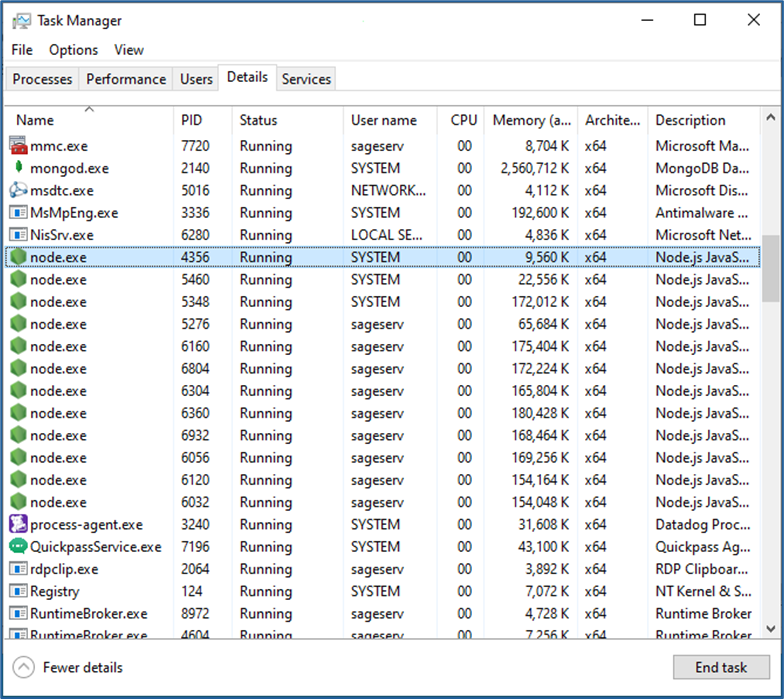
- ONLY perform step 2 above if the two Syracuse services do not successfully stop on their own
- For versions of X3 after V12 P36, there is only one service named “Safe X3 Syracuse Server NODEx”
- The same procedure as above can be performed while stopping only this service
- For versions of X3 prior to V12 P36, there are two services, one named “Safe X3 Agent Syracuse Server NODEx” and one named “Safe X3 Syracuse Server NODEx”
- If you have multiple Syracuse host instances in your X3 solution, repeat step 23 on all servers prior to proceeding with shutdown of MongoDB
- If you also have a “Sage X3 Services” instance, stop this as well before proceeding
Part 3: Stop and Restart of MongoDB Service
- Once all Syracuse and associated processes have been stopped on all servers, it is safe to restart MongoDB.
- Stop the service named “Safe X3 MongoDB MONGOxx”
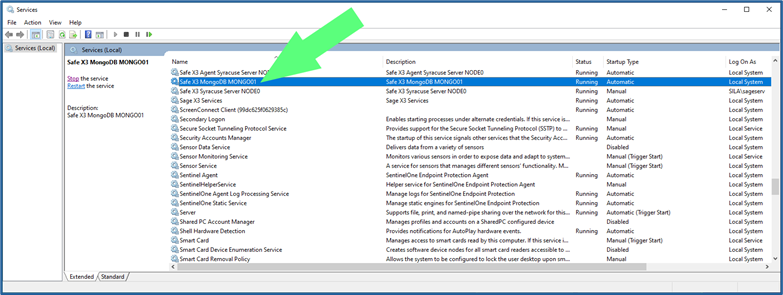
- Stop the service named “Safe X3 MongoDB MONGOxx”
- Start the Safe X3 MongoDB MONGOxx service
- If you get an error when attempting to restart this service, it is likely that there is a configuration, layout, or bad character in your revised “mongodb.conf” file
- Re-verify the changes made in section I above
- If you are still unable to restart MongoDB, change the name of your revised “mongodb.conf” to something like “mongodb_new1.conf” and rename the backup copy created in step 1 as “mongodb.conf”
- This will rollback the config change made and will not mitigate the vulnerability, but it will make X3 functional again.
- Once the Safe X3 MongoDB MONGOxx service is running again, you can restart all Syracuse services on all servers
- Also restart Sage X3 Services if present after all Syracuse services have been restarted
- Once Syracuse has restarted successfully, log back into X3.
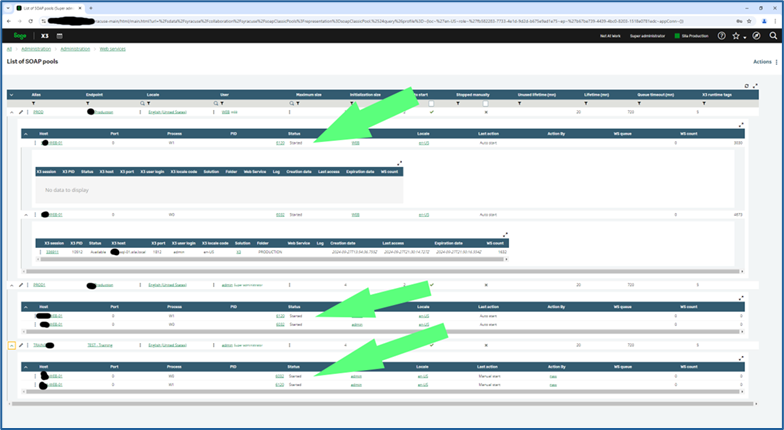
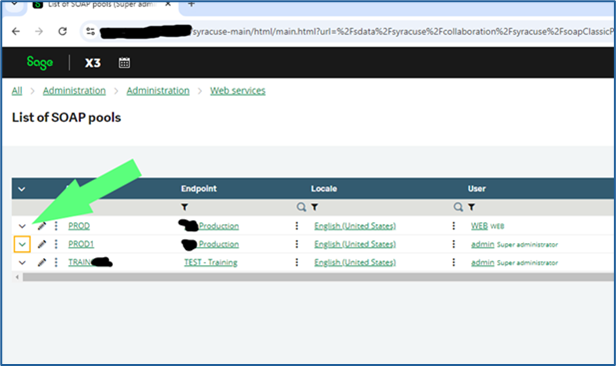
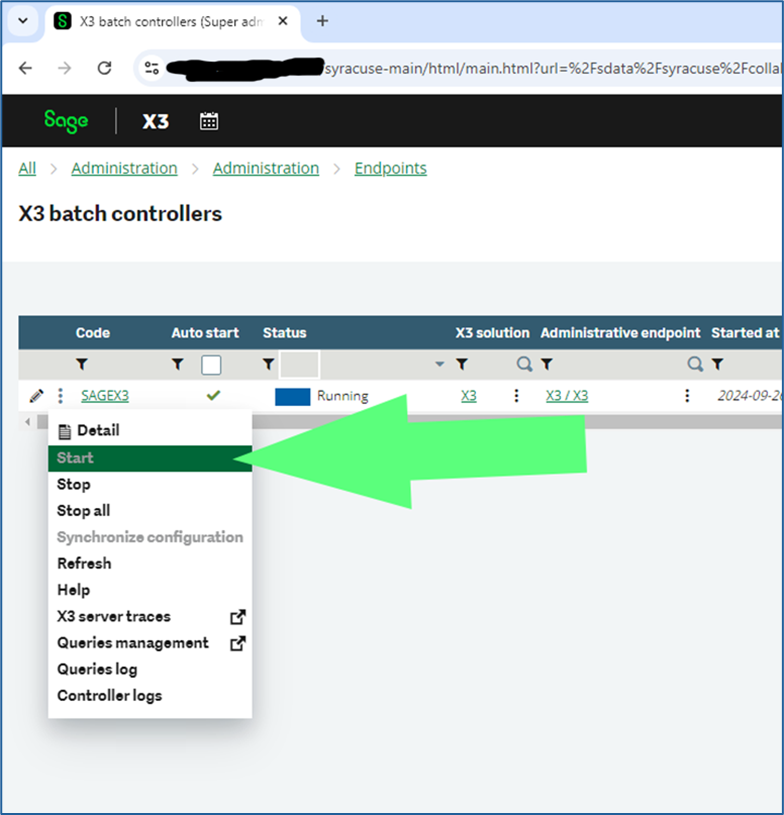
- Check that the batch server and all SOAP pools that are set on Auto Start have started running again. They are supposed to after a Syracuse restart.
- If they did not, click the three dots as in section II above next to their names and click “Start”
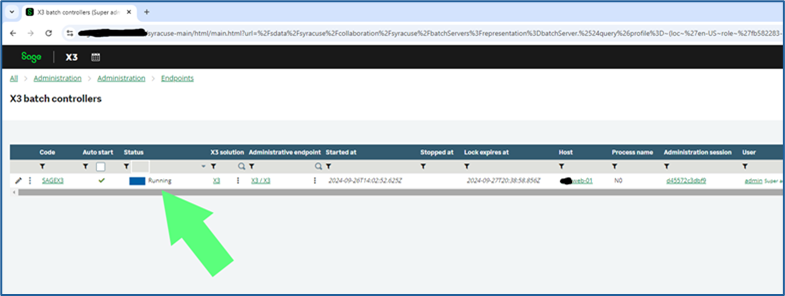
- Go back into Usage > Batch Server > Accounting tasks
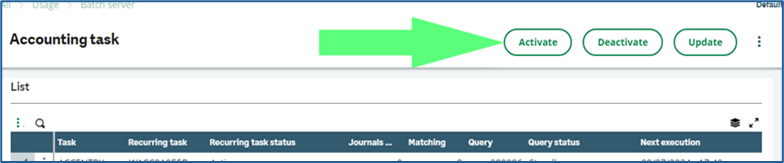
- Click the Accounting task button
- Click the Activate button
- Use “X” the button to back out of the Accounting task screen
Upon completion of these steps, your Sage X3 environment should be successfully mitigated against the MongoBleed vulnerability. If you encounter any issues, we recommend reviewing each step carefully to confirm configuration accuracy. Should you require assistance at any point, the Net at Work Sage X3 technical team is available to support you.