



Blog Listing

Technology in Practice
Practical guidance on ERP, CRM, HR, finance, and the technology powering modern organizations.




Blog
MAS 90/200 Year-End Processing Tips
Here are a couple of Tips To Help Year-End Processing Run Smoothly. We’ll talk about determining if your installed Tax Table Update (TTU) is current and Filing Forms and Reports.
Tip 1) Determine If Your Installed Tax Table Update (TTU) Is CurrentBecause government agencies may make changes to tax rates at the last minute, Sage may release several TTUs in late 2010 and in early 2011. Here is how you can check if you have the latest TTU installed:
First check the year, quarter, and release date of the latest TTU available on Sage Software Online as follows:
Log on to Sage Software Online, and access the Sage ERP MAS 90 and 200 support page.
In the Download area, click the Tax Table Update link.
Click the Download the TTU link for the desired tax table. Note the date, quarter, and year, which are displayed near the top of the download page.
The quarter and year also are included as part of the download file name (for example: 2010Q1TTU.exe)
Next, check the TTU version on your installed software as follows:
Expand Library Master and Reports. Double-click Installed Module Listing.
Click the Preview button to display the report, and note the year and quarter for the tax table displayed in the Modules/Enhancement column (for example: 2010-Q4 Tax Tables). Also compare the date listed in the Release Date column (for example 11/12/2010).
This tip applies to Version 4.0 and later. Give us a call for assistance.
Tip 2) Filing Forms And Reports
Federal and State eFiling and Reporting was introduced in Sage ERP MAS90 and 200 Version 4.3 to streamline your tax reporting processes. Over 230 federal and state forms are included, such as: Unemployment, Withholding, New Hire reports, Form W-2, and Form W-3. You are able to automatically eFile W-2 and 1099 forms to the appropriate state and federal agencies, print and mail the forms to your employees, or choose to use the fee-based eFiling service.
When you use the electronic forms within Sage ERP MAS90 or 200, they will look very familiar, as they replicate the pre-printed government forms. However, the on-screen form will have much of the information already populated in the appropriate fields. Simply select the form from within Sage ERP MAS90 or 200, view and edit the information on your screen, and then the form is ready to print.
You can avoid the hassle of aligning pre-printed forms by using blank, perforated W-2 and 1099 forms. You also can go green by using Sage eFiling Service, offered on a transaction-fee basis. The flexible service allows you to choose which documents you want to eFile. Hard copies will automatically be sent to you and your employees as appropriate. You also can provide employees with access to their copy on a secure website. Forms are kept up-to-date automatically, so you never have to worry about having the current form or report. All forms are saved in a history file for easy retrieval.
The fees for the W-2 and 1099 form eFiling service range from $.49 to $1.49 per employee, depending on how much of the service you want to use. Volume pricing is available for those with large numbers of W-2 or 1099 forms to file. A $24.95 minimum applies to all Form W-2 filings. Please give us a call for assistance with eFiling.
Read more

Document Management
Your Manual Paper Processes Cost More than You Think
Companies that remain competitive in today’s economy are doing so with fewer resources. This is the core goal of automation; to enable fewer people to accomplish more by completing redundant time consuming work by computer.
Small to Mid-Sized businesses are no exception. With many of the same HR, Legal, Operational & AP needs as the big firms, but not the budget, the SMB market needs fresh ideas from proven companies.
If you’d like to learn more about those options, join us for this Live Webinar where our Document Management experts will discuss:
The On Ramp To The Information Super Highway – The creation of digital images from scanning paper or importing electronic files and data is known as Capture. Capture is the one of the on ramps for the Information Super Highway, bringing slow inefficient processes to the fast lane.
Save Time…Make Money – Capture data from the page with a minimal effort so that your staff moves quickly and accurately to the next task. Be more efficient. The more efficient your company is the more of your income can be put back to revenue generating activities and away from overhead.
How Do I Get These Benefits Without Spending A Lot? -There are many systems and consultants to choose from. Learn about solutions designed for the SMB market from a consultant with a proven track record in helping the small and midsized companies.
What Types Of Solutions Will Work For Me? – While organizations have unique experiences & needs, there are many approaches that are universal. We will share with you several of those approaches that have worked for others. In doing so we hope to excite you about the opportunities for your own organization.
Read more
Blog
ERP
Sage ERP MAS 200 SQL v 4.45
On November 16, 2010, Sage announced the availability of Sage ERP MAS 200 SQL version 4.45. It combines the innovative customization capabilities and the features and functionality of Sage ERP MAS 200 with the efficiency of Microsoft SQL Server. A migration path for existing Sage ERP MAS 90 and 200 customers to the new SQL product is expected to be available sometime in 2011.
Read more
Blog
ERP
Some Helpful Hints For Sage MAS90/200 ERP
Here we’ll share three MAS 90/200 hints.1) Changing Mailing Label Formats.2) Improving Performance In Sage MAS Intelligence3) Customizer Changes Do Not Appear To Take Effect.
(Hint 1) Changing Mailing Label Formats
The default graphical mailing labels in Sage ERP MAS 90 and 200 are designed to print one, two, or three labels across and 10 labels down. Here we give you several options if you need to print using a different label layout, such as 2 across and 3 down. Before you start, make sure you know the exact size of your labels.
Option 1 – Crystal Reports:
In Crystal Reports, in the form design screen for mailing labels, right click on any of the Details sections.
Select the Format Section option and highlight the Details section.
Click on the Layout tab and change the height and width to the appropriate size. Notice at the bottom of the Layout Tab, the Number of Details has changed.
Option 2 – The Report Expert:
The Report Expert found on the Report menu also can be used to modify forms to a standard Avery size; however, it tends to reformat the form quite a bit. Be sure to make a copy and work with the copy of the label form if you select this option.
Option 3 – Custom Report:
Create a Custom Report from scratch. Choose Mail Label from the Report Gallery in Crystal Reports. A wizard will step you through the creation of a label type report. You can then add the labels to the Custom Reports menu using Report Manager.
Adjusting Margins For Labels
The default three across labels normally fit on Avery 5160 label stock, but on certain printers you may need to adjust the margins slightly. This is done from the File menu by selecting Page Setup. Changing one margin to 0.18î will usually correct the problem.
(Hint 2) Improving Performance In Sage MAS Intelligence
Sage MAS Intelligence is the new reporting and analysis software that replaces Microsoft FRx. If you have large amounts of data, compacting the metadata can improve the performance of the system as it removes unnecessary connections and unneeded background files. To compact metadata:
Open Sage MAS Intelligence Report Manager.
Select File/Compact Metadata.
Select Yes to the question: To compact your Metadata Alchemex must shut down. Do you wish to continue?
In the Maintenance Utility window select the Compact SVD button.
Select Yes at the prompt: This will attempt to compact your server Metadata file. Please make sure that there are no users logged on to the system before continuing. If you want to proceed press Yes, or else press No to abort.
Once the process has completed Copying, Deleting, and Compacting you will receive a prompt: Completed Successfully. Select OK.
A backup copy file named alchemex_backup.svd will be created during this compact process. Once you have verified that the system is working correctly after the compact then you can delete it, or keep it as an additional backup.
Learn more about Sage ERP MAS Intelligence
(Hint 3) Customizer Changes Do Not Appear To Take Effect
If you have made changes to Sage ERP MAS 90 windows through Customizer, but the changes do not appear to take effect, they may have been overridden by Personalizations the individual user has made to the screen. For example, the user moved the Comment field to the lower grid on the Lines tab for Sales Order Invoice Data Entry. To have the customizations show up, you can reset the default window settings as follows:
Open the window that displays incorrectly and right-click anywhere within the window.
From the context menu, point to Form Settings, and click Reset Form.
Select one of the following check boxes and click OK.
* Reset All Grids (windows with data entry grids).
* Reset Window Size and Position (all other windows).
Close and reopen the window. The window should reset to the default settings, and the Customizer changes should now display.
Note: This hint applies to modules upgraded to the Business Framework in level 4.0 and higher.
Read more

Company
CRM
On The Rise. Reselling is Just The Start for Booming Tech Consultancy Net at Work
Last month Seth Fineberg, Tech Editor for Accounting Today magazine visited our New York City headquarters to talk about the state of the (VAR) market, as well as the growth and success of Net at Work.
These conversations resulted in a well-crafted practice profile (thank you Seth!) landing Net at Work Co-presidents on the cover of the November 15, 2010 issue of Accounting Today Magazine.
The profile covers a range of topics from the very early days of our founding, to Docutrend, OnTheGo mobile, going national, and a look ahead. We are pleased to share the article (below).
The story can also be found online at Accounting Today’s website: www.webcpa.com
Read more

Blog
Employee Experience
Sage Abra SQL HRMS Version 10.1
Sage has released a new version of Sage Abra SQL HRMS, Version 10.1. This release is packed with new features. Payroll enhancements and support for Canadian Payroll are a big focus, along with added control, flexibility, and security for workforce data. Let’s learn more.
Customer-Requested Enhancements
Sage Ideascope, the product feedback option on the Help menu, allows customers to directly connect with the product management and development staff at Sage. As a result, 16 customer-requested enhancements are included in Version 10.1. The customer-requested enhancements implemented include: allowance for exclusion of waived benefits; more HR fields in the Employee Profile; reordering of steps for the on-boarding process; and a drop-down list with job titles in Employee Find.
Canadian Payroll Added
With support for Canadian payroll added, you can designate a Sage Abra HR company as Canadian, U.S., or both. When you install the payroll module, all Canadian payroll tasks, processes, reports, and setup information are added to your system. The Payroll items will appear in the Navigation Pane and the Main Menu.
Enhanced Payroll Capabilities
The Payroll module has been enhanced in the areas of usability, reporting, and security. Many functions have been moved to more intuitive locations to save you time across your most common payroll processing tasks. For example, the labels and placement of some items on the Open Payroll window have been added and changed to provide more clarity and ease of use. To make it easy to test the new features and see how they work before implementing them on your live payroll, sample data has been added for both U.S. and Canadian payroll. Group-level security is added to make sensitive payroll information even more secure.
General Ledger functionality now is included in Abra Payroll, allowing you to perform allocations and use cost center overrides for general ledger posting. You can allocate benefit deductions (such as medical, dental, and life insurance) with a flat calculation type to the same accounts as the associated earnings.
A new menu item, Common Deduction Limits, has been added to Payroll Setup. Using this new feature, you can associate multiple deductions based on a single limit and ensure that employee deductions do not exceed defined annual maximums or lifetime maximums. This means you no longer need to manually calculate group limits for multiple deductions such as union dues, garnishments, and retirement plans. A Common Deduction Limits report also has been added.
Improved Ease Of Use
A number of changes have been made to simplify processing in Sage Abra HRMS. To help HR and payroll staff become more productive, the shortcut key combinations available for the current screen appear when you hover the mouse over the page icon, and employer maintenance activities (Add, Modify, Delete) are grouped together in the same area on the navigation pane. Field-level changes also increase usability, for example:
Domestic Partnership is added as a Marital Status type.
The phone number extension field is increased in length to six characters.
Emergency Contact Relationship and Source of Hire field lengths have been increased to 25 characters.
Reporting And Analysis
Now, by default, many benefit reports do not show historical records to make current benefits information easier to find. When you want to include history, a new criteria selection, Include History Records, has been added to the following reports: Benefit Coverage By Employee; Benefit Enrollment by Plan; Benefit Premium Totals by Plan; Employee Benefit Changes; and Insurance Coverage Detail.
Here are additional reporting changes included in Version 10.1:
The Benefit Premium Totals by Plan report runs correctly with and without terminated employees.
The Insurance Coverage Detail report shows the correct information according to the Effective Date entered on the Specific Criteria tab.
The Employee Profile report shows the correct dependent benefit information when Dependent is selected to be included on the Specific Criteria tab.
The EEO Job Group Age Analysis report now includes employees who are on leave of absence at the specified time.
The Employee Attendance YTD Details report no longer includes any employees’ plans that have zero available time left.
Sage ERP MAS 90 and 200 Integration
The Sage Abra HR for MAS 90 link now is available in Sage Abra SQL HRMS. The link includes the ability to transfer employee data from Sage ERP MAS 90 Payroll to Abra HR; transfer of employee data from Abra HR to Sage ERP MAS 90 Payroll; and transfer absence transactions from Sage ERP MAS 90 Payroll to Abra Attendance.
Leveraging Technology
Because Sage Abra SQL HRMS is built using industry-standard technology such as Microsoft SQL Server, the Sage development team can leverage new tools to deliver information. ViewBuilder technology allows your organization to create dashboards that managers and executives can use to view workforce information anytime, anywhere. Version 10.1 adds support for more browsers, including Google Chrome, Apple Safari, and Mozilla Firefox in addition to Internet Explorer. Executives can view Employee Analytics in iGoogle or Excel, and on an iPad, iPhone, BlackBerry, or other intelligent device. In 10.1, Sage has added more data in the Employee Analytics Views to provide more comprehensive information in dashboard views, and you now can build custom roles that enable other types of managers to access View Builder. A view created in View Builder now can be formulated in Crystal Reports.
Are You Ready To Upgrade?
There are a number of steps to be performed when upgrading to Version 10.1 Payroll, including setting up the General Ledger, updating the mapping for all Employee Configuration Profiles, and setting proper access in the new security feature. Please call us for assistance.
Read more
Distribution / Manufacturing
ERP
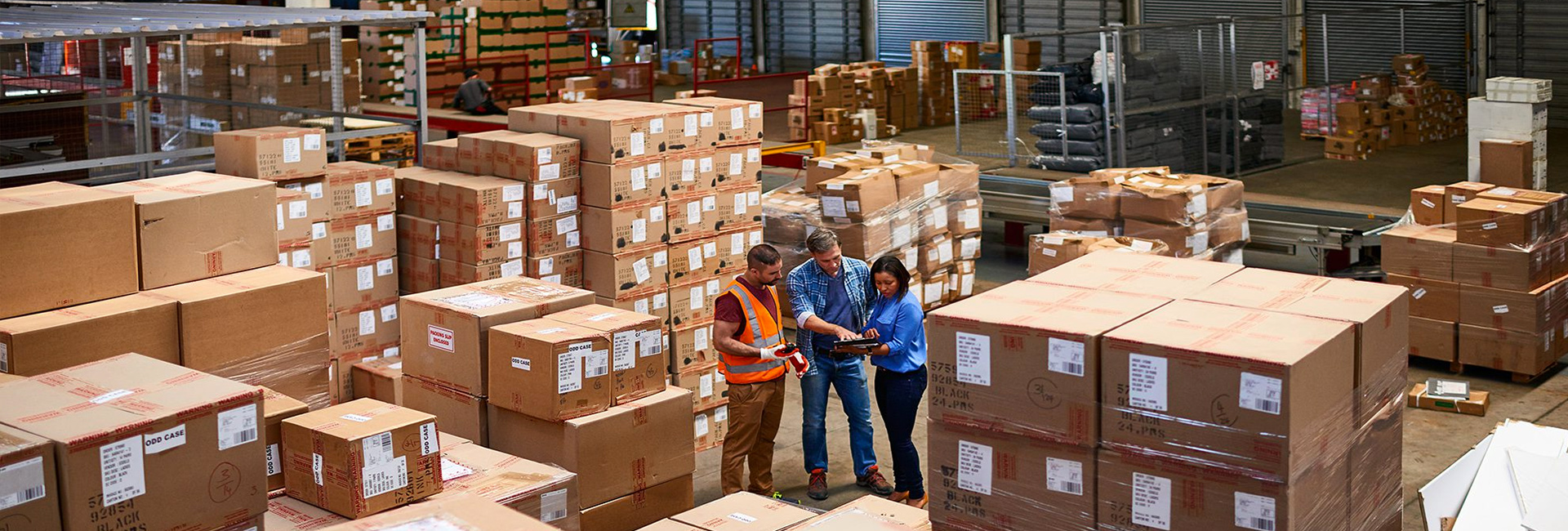
The Benefits Of Automating Your Warehouse
The heart and soul of a successful distribution operation is knowing exactly where your products are stored and the quickest way to retrieve them. The efficiency with which you manage picking, packing, shipping, and receiving has an immediate impact on your bottom line. One way to obtain a big gain in efficiency is to implement a wireless data capture solution in your warehouse. In this article we discuss what to look for in a warehouse automation solution to maximize your warehouse operational efficiency.
Automation Efficiencies
In many warehouse situations, data is manually entered into the computer, while warehouse workers are kept busy picking orders and putting stock away. Situations can change rapidly on the warehouse floor, and the data entered manually often is outdated by the time it is input. Lack of real-time information about stock on hand makes it difficult to provide good customer service. In an automated warehouse, all items are scanned as they move in, out, and around the warehouse. The scanned data is downloaded directly to the computer system via radio frequency (RF) to provide real-time information about the productís location. When an order comes in, the order taker need only access the computer records to see how much of any given product is in the warehouse and pinpoint exactly where it is located for the order picker.
Wi-Fi and RF networking gain popularity every day. Coffee shops, airports, hotels, libraries, even our own homes are going wireless. Large warehouse operations have taken advantage of these efficiencies for years. Today the wider availability of Wi-Fi systems has made RF technology and warehouse automation more affordable for smaller distributors.
How Warehouse Automation Works
Your warehouse workers use handheld devices to scan barcodes while performing shipping and receiving tasks. The information is beamed via the radio frequency (RF) network to the server that handles the transmission of information between the handheld device, your ERP system, and barcode label printers. A well-integrated warehouse automation system can validate and post data into your ERP system in real time, so that you have up-to-the-minute product quantity and location information.
The Infrastructure
To make sure the wireless system is available in all areas of the warehouse, a site survey of the warehouse and other RF-enabled areas is recommended for areas greater than 30,000 square feet to determine exact requirements for access points, antennas, cables, and so forth. The site survey will result in a list of all required components and exact placement of the access points and antennas in the warehouse. When purchasing hand-held barcode reader devices, keep in mind they need to be the rugged type that can survive a five-foot drop. Barcode label printing needs to be part of the solution as well. Your warehouse automation system should be able to print barcode labels in flexible formats.
Read more
Blog
Review of MAS 90 MAS 200 v4.4 Product Update 3
The Sage MAS 90 and 200 roadmap, that Sage published earlier this year, called for more frequent, easy-to-install, focused enhancement releases. And Sage has delivered, providing customers on maintenance plans with three Product Updates since Version 4.4 shipped earlier this year. Here we will cover Product Update 3 (Version 4.40.0.3) that became available September 2010.
In this third Product Update, Sage delivers new customer-requested functionality focusing on the Bank Reconciliation module, to streamline workflow and resolve bank reconciliation pain points.
Smooth General Ledger Posting
When you receive your bank statement there are usually transactions, such as adjustments and bank fees, that are not yet in your Sage ERP MAS 90 system. Product Update 3 improves the workflow for these entries, allowing you to enter the adjustments and post to the General Ledger directly from the Check, Deposit and Adjustment Entry, and Reconcile Bank screens. You also can efficiently convert the Bank Reconciliation Report and Bank Reconciliation Transaction Register to a PDF format for easy electronic filing and distribution to others, using new Bank Reconciliation Paperless Office features.
New Columns Facilitate Workflow
The improved flow of information to the General Ledger is accomplished via new columns on the Check, Deposit and Adjustment Entry screen. The new columns are: Select for General Ledger Posting, Distribution Account Number, and Comment for Checks. These fields also are available when entering checks, deposits, and adjustments on the fly. The information that you put in the comment field will flow through to the General Ledger when the transactions are posted.
Quick Access To Bank Recap
Another customer enhancement request is the ability to access the Bank Recap Report and the Bank Reconciliation Register more quickly. With Product Update 3, you can access both of these reports from buttons located on the Reconcile Bank window.
New Transaction Register
A new Transaction Register task has been added to the main menu for Bank Reconciliation to provide the ability to post selected transactions to the General Ledger module. You also can print the Transaction Register directly from the Check, Deposit and Adjustment Entry, and Reconcile Bank screens.
To safeguard against unintentionally creating duplicate entries, posting only is allowed for those transactions entered directly into the Bank Reconciliation module.
New Security Events
The new workflow includes added security events in Role Maintenance to restrict who can use the new features:
For the Bank Reconciliation Transaction Register a new Allow Updating of Registers from Preview is added as a standard security event.
For the Bank Reconciliation module a new Allow Access to the Select for G/L Posting Setting for Check Entries and Allow Access to the Select for G/L Posting Setting for Deposit and Adjustment Entries are added as standard security events.
Paperless Office For Bank Reconciliation The Bank Reconciliation module goes green and joins the other core modules with the ability to create a PDF file of Bank Reconciliation reports. You can choose to print the Bank Reconciliation Report and Bank Reconciliation Transaction Register by specific bank codes, or by all bank codes.
Flexible Paperless Office features give you the ability to easily e-mail or fax the PDF documents. Once converted, the Bank Reconciliation Report and Bank Reconciliation Transaction Register can be saved in the archive for easy recall, with complete security.
Microsoft Office 2010 Compatible
With the release of Product Update 3, Sage ERP MAS 90 and 200 now are compatible with the latest version of Microsoft Office, Office 2010. Now you can take advantage of the new features of Office 2010 when creating mail merge letters or exporting to Excel from Sage ERP MAS 90 and 200.
Available Via Download
Product Updates have been designed to be easy to download and install. The compact file containing Product Update 3 can be downloaded from Sage Online. Product Update 3 includes a Pre-Installation Data Scan utility to help identify any data issues prior to installation, thus mitigating the possibility of running into trouble with data conversion. Please give us a call for assistance with the Product Update or with your questions about the new features.
Read more

Blog
ERP
Sage Accpac ERP v.6.0 – Scheduled for Release December 2010
Sage ERP Accpac Version 6.0 focuses on most-requested functionality by customers. Various aspects of this release are designed to help you improve productivity, make better business decisions, and accelerate your company’s growth. Exciting new tools, such as the new desktop Portal help you to accomplish everyday tasks faster. The new Snapshots capability provides secure access to important business metrics, and a new inquiry tool facilitates the creation of customized lists that can provide the answers you need to make better business decisions.
New Desktop Portal
Sage ERP Accpac Version 6.0 introduces a new desktop Portal similar in appearance and concept to My Yahoo! or iGoogle. The Portal simplifies navigation and gives your team faster access to information so they can accomplish everyday tasks more quickly.
An intuitive new task layout allows you to find information faster. Simply select the associated link to launch a task. New components, such as Inquiry screens and Snapshots, will open a new tab within the Portal, making multi-tasking as simple as clicking on a tab. Naturally, the portal is fully secured, and task availability is dependent upon the userís security access to modules and tasks.
The Portal lets you easily create custom shortcuts to the screens you use most. The My Shortcuts bar hosts personalized shortcuts and a row of thumbnails associated with Sage ERP Accpac forms.
The system will continue to support the classic Windows-based user interface in parallel, allowing you to adopt the new Portal at your own pace. We encourage you to try the Portal because it has been designed to eliminate many challenges reported by customers associated with the classic desktop. To encourage adoption, the Portal does not utilize a user license. This benefit is for a limited time only, and is designed to allow you to provide key information to stakeholders without impacting your total cost of ownership.
The Sage development team was able to implement the new version without changing the business logic, due to the superior three-tier architecture of Sage ERP Accpac. This means that applications that are currently integrated with Sage ERP Accpac can become more accessible and user-friendly.
Fast And Easy Access To Information
The new Sage ERP Accpac Inquiry facilitates quick access to customized lists to give you the answers you need to make better decisions. The highly intuitive interface puts tailored access to information within easy reach of users with only minimal training and IT support. Users can create personalized query lists in just a few minutes without the knowledge of databases, programming or Web technologies. Now it is easy to create database connections, add fields and customize data.
Your team will be able to uncover opportunities and highlight possible issues, make better decisions, and execute appropriate actions in response to ever-changing business needs. Version 6.0 supports the new Inquiry functionality in the Accounts Receivable, Accounts Payable, and General Ledger modules.
Proactive Trend Analysis
New Sage ERP Accpac Snapshots give executives and managers fast, secure access to key performance indicators (KPIs). Each Snapshot includes drill-down capabilities to underlying financial reports. The graphical presentation of information helps with quick identification of trends or issues for more proactive business decisions. Version 6.0 includes the following configurable Snapshots:
Income Statement – This Snapshot summarizes revenues and expenses for each group category of a company for a selected period of time. You can drill down from the chart components to view reports for each Group Category as well as to view the complete Income Statement. Select from options to view the report by fiscal year, period, or quarter.
Balance Sheet – You can use this Snapshot to summarize assets, liability and equity for each Group Category for a company for a given point in time. Configuration options allow you to select fiscal year/period. Drill down from chart components gives access to reports for each Group Category and the Balance Sheet Report.
Aged Payables – This graphical presentation of outstanding Accounts Payable items organized into aging periods is useful for payable analysis. The drill down from the chart columns gives you access to the aging report for the period selected, and a summary report for all outstanding items. You can choose to display aging as of due date or document date.
Aged Receivables – You will find the graphical presentation of outstanding receivables organized into aging periods useful in analyzing collections. Drill down from chart columns to view a report for the aging period selected as well as view a summary report for all outstanding receivables. You can choose to display aging as of due date or document date.
Days Payables Outstanding – This KPI is a financial ratio expressed in terms of the number of days accounts payable are outstanding. You can set the target Payables Outstanding Days to see how you are tracking against your goal. The formula for the ratio is: Ending Accounts Payable balance divided by annual purchases, and then the result multiplied by 365 days.
Days Receivables Outstanding – This Snapshot provides you with a financial ratio expressed in terms of the number of days accounts receivable are outstanding. You can set the target Receivables Outstanding Days to see how you are tracking against your goal. The formula for the ratio is: Ending Accounts Receivable balance divided by annual billings, then the result multiplied by 365 days.
Supervisors and managers can place the Snapshots in their Portal, giving them the ability to monitor these key performance indicators throughout the work day.
SageCRM Workflow
Version 6.0 also includes SageCRM Workflow Enhancements that improve information flow between the front and back office; see page 4 of this newsletter for details.
Sage ERP Accpac Version 6.0 is scheduled for release in December 2010. You are entitled to software upgrades, including Version 6.0, as part of your Sage ERP Accpac Software Assurance plan. Give us a call if you need to renew your plan, or with your questions about the release.
Read more