





Seeing “Error 56” pop up in Sage X3’s Fixed Assets can be frustrating, but the good news is there’s a straightforward fix. In this week’s Sage X3 Insider blog, we share a question recently asked by one of our Sage X3 clients, then break down the root cause of the issue and share an easy-to-follow process to correct the INDCURPER value and clear the error for good.
Example Client Question:
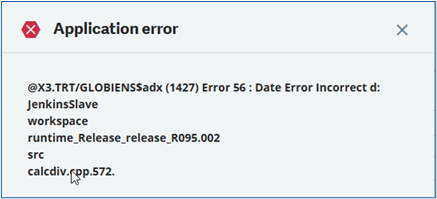
‘When trying to select a Fixed Asset I encountered the error message (Image #1 below) GLOBIEN$$adx (1427) Error 56: Date error incorrect’ Can you help?”
Solution Provided
- Please go to Fixed Assets Depreciation Context as shown below.
- Note – Image #2 above is for training purposes. This Depreciation Context is not specific to any client.
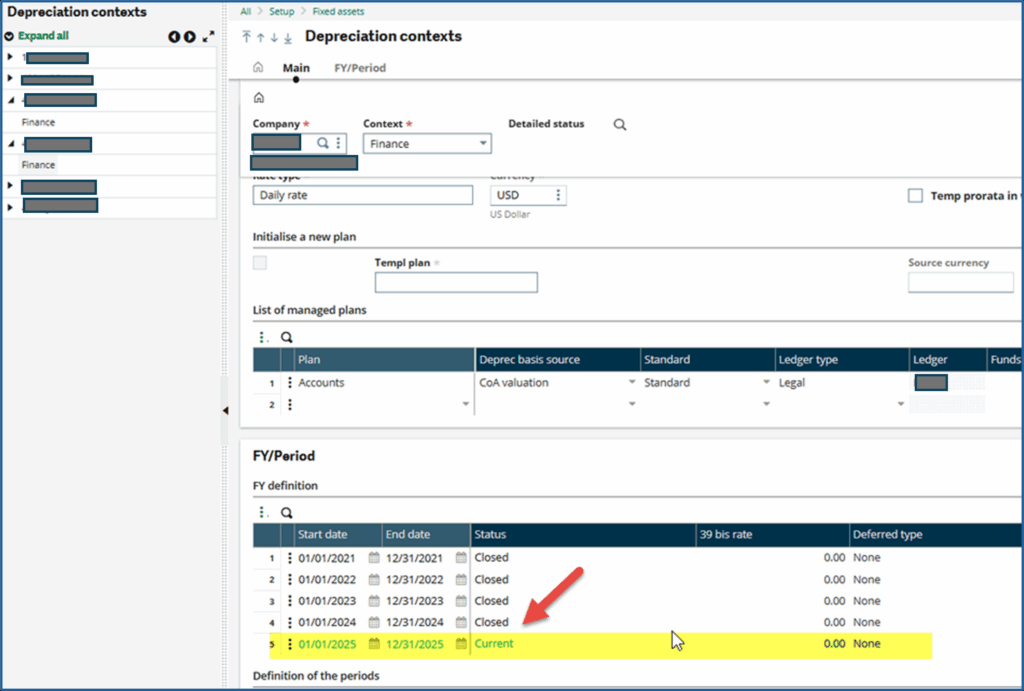
- What is the row number for the Current Period of the Company you are fixing?
- Note – In the example below (Image #3), its 5.
- If your screen shows July 7, then you should use 7
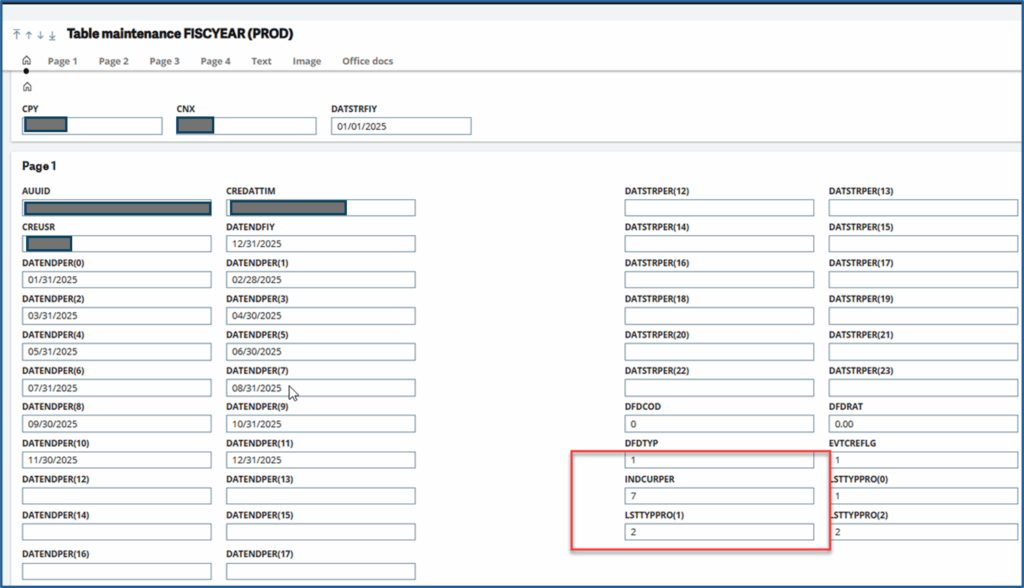
- Change the INDCURPER number (after you selected record CPY= ”###” and STAFIY=2) to the period you see labeled “CURRENT”.
- Fix the record for the following year (reference the image show below)
- The next year INDCURPER should be set to 1.
Summary of the Issue:
- Problem Statement: GLOBIENS$adx (1427) Error 56
- Root Cause: There is an inconsistency on the current period index of the company
- Problem Solution: To fix INDCURPER in table FISCYEAR
The problem was resolved by doing the following:
- Step 1: Make a note of Current period in Depreciation Context
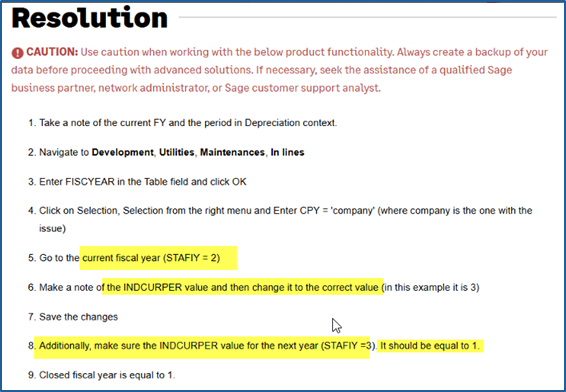
- Step 2: (Image #4 Above) Go to GMAINT, table FISCYEAR, do a selection, CPY=’###’ and STAFIY=2. Take a screen shot first. Change INDCURPER to Current Period number 5 in this case. Save
- Step 3: Do another selection, CPY=’###’ and STAFIY=3. Take a screen shot first. Change INDCURPER to 1 in this case. Save
- Step 4: Go and select “Fixed Assets” for other companies to make sure you don’t have any more errors. If you get another error notification, repeat this process from step 1.
By following these steps, you should be able to quickly resolve the GLOBIENS$adx (1427) Error 56 and keep your Fixed Assets running smoothly. If you run into any challenges or have questions after reading this guide, please reach out to our team for further assistance.