



Sage X3 Tips – Insider


Resources for Sage X3 Users
Sage X3 Tips, Tricks, Videos on Features, Modules and 3rd Party Solutions

ERP
Intelligent ERP Powered by the Sage Ecosystem
On August 5, 2020, Sage held a virtual conference for Sage X3 customers and partners. The event, Intelligent ERP Powered by the Sage Ecosystem, was a 4 hour complimentary virtual online event dedicated to Sage X3 and the add-on solutions that integrate with Sage X3. This online conference offered sessions with valuable business advice on key topics, presented by Sage and third-party experts.
If you missed the live event, you can now take part in the on-demand version which will be available through September 5, 2020.
WHY ATTEND?
The virtual online event dedicated to Sage X3 customers and partners included:
Conference sessions with valuable business advice on key topics, presented by Sage and third-party experts, including a presentation by our colleagues at Pixafy on our erpCommerce™ solution: Quick to Market eCommerce for Magento Built for Sage X3.
Other session topics included: automating accounts payable, inventory optimization, leveraging automation to drive your business, business intelligence and many more.
PDFs of session slides are available.
A virtual exhibit hall where you can get information from our partners and providers of third-party add-ons for Sage X3.
DO I NEED TO REGISTER TO ATTEND?
Yes, you will need to complete the registration form to be able to access the on-demand event. On the registration form please be sure to include Net at Work as your Sage Business Partner.
DO I NEED TO DOWNLOAD OR INSTALL ANY SOFTWARE TO BE ABLE TO ATTEND?
No. You do not need to download or install any software to participate in the on-demand conference. You only need to have access to the Internet.
Register here or, for more information about the Sage X3 ecosystem, please contact us.
Read more

ERP
Your Guide to Artificial Intelligence in 2020
According to the market research firm Tractica, the global artificial intelligence software market is forecast to experience massive growth in the coming years, with revenues increasing from around $22B U.S. dollars in 2020 to an expected $126B by 2025.
WHY SHOULD BUSINESSES CARE ABOUT AI?
Not sure what artificial intelligence means for your business and the important role it can play? This guide shares insights into AI and business automation and offers advice across different business verticals.
Packed full of data and expert commentary and analysis, Artificial Intelligence in 2020 reveals:
The three factors driving AI to finally fulfil its potential when it comes to practical applications in large businesses.
Why automation is already making a huge impact in multiple industries and why more advanced forms of AI are now accessible to businesses.
The practical ways AI is already making an impact in industries including finance, manufacturing and automotive.
Why data is so important to the future of AI in business and why digital transformation is crucial in taking advantage of opportunities.
Guidance on shaping your AI strategy and what this could involve in terms of investment in technology and talent.
The guide also outlines considerations for business leaders around the ethics of AI and the responsibility of the tech industry when it comes to job creation and the training of existing employees.
You’ll also get expert insights and tips from leading academics and executives at Progress, Sentient Technologies, Tradeshift and Technology Evaluation Centers.
Make sure you read Artificial Intelligence in 2020 for straightforward advice on why it may be time for your business to upgrade to meet today’s demands and how to get started today.
Read more

ERP
Using Sage X3 for Successful Customer Relationship Management
While most CRM packages were developed to interface with legacy business systems, Sage X3 CRM was designed from the start as a robust, fully integrated module within Sage X3.
A Broad and Integrated Approach
Sage X3 CRM allows salespeople and customer service representatives to do the following:
Create and track leads, prospects and opportunities
Schedule calls, tasks and appointments
Create call reports
Create marketing campaigns and track progress
Create quotes and price lists
Convert prospects to customers
Integrate with MS Outlook to synchronize tasks, calendars, meetings, and contacts
Management Reports
Sage X3 CRM provides Marketing, Sales, and Service reports—all of which can be easily personalized—that provide insights to help you make informed business decisions.
For example, Sales Managers can utilize visual dashboards quickly see sales rep activity and track KPIs to ensure business objectives are met.
Expanded Capabilities
Net at Work has further expanded the capabilities of the native Sage X3 CRM module by:
Creating a CRM workspace highlighting the calendar and what actions need to be performed by user (or group of users)
Creating a Quotes/Orders hub for sales reps to track open items & pipeline information
Developing a mobile-friendly homepage based on Responsive Design that is specifically for users working from a tablet or smartphone
Developing simplified data entry screens to allow for only the most critical information to be captured when working remotely
Advantages of Using Sage X3 CRM
Most importantly, there is no need for integration; it is all one system. Salespeople, with proper security, can inquire real time into:
Customer history and credit status
Orders
Quotes
Invoices
Inventory quantities and availability
Pricing
Internal Customer Service has visibility to all Sales notes, calls and other information.
In turn, Salespeople can see all calls and issues that come directly into Customer Service in their customer view.
Finally, like the rest of Sage X3, all fields, views, queries and reports can be personalized by end users or IT. You can configure Sage X3 CRM specifically to the nuances of your business. Specific processes like requesting samples sent to a prospect or customer can be configured using tasks.
For more information on utilizing the CRM module within Sage X3, register for our upcoming live webinar or contact us.
Looking for More Robust CRM Capabilities?
Net at Work supports both Microsoft Dynamics CRM and Salesforce integrations with Sage X3. These CRM systems provide much larger ecosystems to help your business meet today’s challenges. They bring your customers and business together with the next generation of CRM providing you with a 360 degree view of your business and better insights that drive results. To learn more about integrating MS CRM or SFDC with Sage X3, contact us.
Read more

ERP
How to Install and Manage Sage X3 Add-Ins in Microsoft Office
When you enable an add-in, it adds custom commands and new features to Microsoft Office programs that help increase your productivity. In this blog post, we’ll review how to install the Sage X3 Add-In for MS Excel and what to do if your Sage X3 Add-In is missing.
How to Install the Sage X3 Add-In in Microsoft Excel
Go to Administration > Utilities > Installation > Install addins for Office
V11 Image:
V12 Image:
It should begin downloading the exe, open the exe Next > Install
Open Excel > File > Options
Select Add–Ins > Manage: COM Add-ins > Go
Check the “Excel AddIn for Sage” > Ok
You are now ready to export Excel-based reports/grids from Sage X3.
How to troubleshoot and fix a missing Sage X3 add-in in Microsoft Excel
Open the Microsoft Office product where the Sage X3 add-in is missing.
Go to Options:
Select Add-ins:
If Sage X3 appears on the list of Disabled Application Add-ins, select Manage: Disabled Items and press GO:
Choose SyracuseExcelAddIn from the Disabled Items list and press Enable:
Then choose Manage: COM Add-ins and press GO:
From the list of available COM Add-ins, check Excel Addin for Sage ERP X3 and press OK:
Press OK on Excel options.
You will now see the Sage Add-in on the ribbon. If you do not you may need to close and re-open application.
If you have any issues following these steps or need additional help enabling missing Office add-ins, please contact us.
Read more

ERP
How Your Company Can Tame the Tail Spend Beast
What Is Tail Spend?
Is your company familiar with the concept of tail spend? Even if you’re not familiar with it, you have it. Simply put, “tail spend” refers to approximately 20% of non-core procurement transactions that are largely left unmanaged, usually due to a high volume of suppliers and limited in-house resources. The best way to illustrate tail spend is through the Pareto Principle, wherein 80% of an organization’s spend is strategically managed with 20% of the suppliers. This 80% spend typically includes the cost of goods, tooling, and other capital expenditures, insurance, occupancy, and utilities.
Conversely, 20% of the spend, or “tail spend,” is with 80% of the suppliers. Included in this 20% segment are thousands of operating consumables SKU’s (MRO, PPE, packaging, shipping and warehouse supplies, janitorial and sanitation supplies, industrial gases), logistics by multiple modes, telecom circuits and services, and other services such as waste, uniforms and payroll processing. Consider, too, that the cost of processing and paying invoices for these purchases often exceeds the value of the goods or services received. This spend segment is not only challenging to manage effectively but also to realize industry-best pricing with suppliers that most closely align with your requirements.
For example, a recent manufacturing client with $56M in spend revealed the following:
This $9.4M tail spend is comprised of MRO, packaging, insurance, information technology, logistics, telecom, uniform and waste services, office supplies, marketing, education, regulatory, etc.
Savings of 10-40% or more are typically available in certain expense categories. These potential savings are often overlooked due to a low expectation of return, lack of visibility and internal resources, and benchmark data. Executives and procurement leaders must change the way they look at tail spend. Executives might reason that tail spend is too costly to manage from a process point of view, but that’s the reason they should not ignore it, as it’s too costly from a business point of view.
Read the full whitepaper from our partner Expense Reduction Analysts or contact us for more information.
Read more

ERP
Revenue Recognition in Sage X3 V12 for ASC 606 and Beyond
There are various accounting standards that provide guidelines on how to handle everyday accounting interactions. One in particular – accounting standard codification 606 (ASC 606) – specifies how companies should recognize revenue from contracts with customers and provides a standard framework for how to report the nature, timing, and uncertainty of the revenue. Of course, revenue can extend beyond contracts with customers. With the PJM module activated and the latest v12 patch, Sage X3 makes compliance with this standard and other revenue recognition seamless. After configuration, users can successfully record revenue in minutes.
CONFIGURATION
1. Navigate to Setup > General parameters > Sequence number definition > Structures to create the following sequence numbers:
RRV for revenue recognition creation
REVRC for validation and posting
2. Navigate to Common data > G/L accounting tables > General > Journal codes to create the journal code RRC, which will be used for posting
3. Navigate to Setup > Financials > Document types and define the document type REVRC
4. Navigate to Setup > Financials > Accounting interface > Automatic journals and create the automatic journal REVRC, which will allow for revenue recognition posting
5. Navigate to Setup > General parameters > Parameter values and create the parameter REVJOU under the REV group to define the automatic journal to use
6. Navigate to Setup > Financials > Accounting forms > Revenue recognition rules to define revenue recognition codes by company
Fill in required fields Revenue recognition code, Description, and Company. The company selected must be a legal company with the PJTMGT set to Yes
Define the data that will be used to calculate the recognized revenue in the Definition grid
7. To assign revenue recognition rules to a project, navigate to Projects > Projects > Project management. Select the project you would like to assign it to. In the Project tab in the Financials section, select the rule at the Revenue recognition rule field
REVENUE RECOGNITION PROCESS
Begin by gathering the most up-to-date project information.
1. Navigate to Projects > Projects > Project Management and select the project from the left list
2. Select Financial snapshot from the right list
3. Create the financial snapshot if this is the first time it is being generated for this project:
Select the New button from the right list
Enter the Project number
Select the Revenue recognition checkbox
Select the Create button from the right list
4. Select the Snapshot extraction button in the upper right-hand corner
5. Select OK and view the log reading
Run the Revenue recognition function.
1. Navigate to Financials > Closing processings > Revenue recognition > Revenue recognition
2. Select New and enter the revenue recognition code
3. Select the project code
4. Enter the period and end date
5. Navigate to the Posting section, enter the Entry type and Debit/ Credit accounts to be used during the posting process
The debit account will be deferred revenue
The credit account will be the actual revenue account
6. Select the Create button to create the record
7. Click Calculation to generate the amounts
A pop-up message may appear that adjusted percentage has not been entered
Select Yes to calculate the amounts
Select No to enter an adjusted percentage before calculating
Verify the amounts and make any adjustments as needed
1. Use the Adjusted amount column to modify amounts for the following:
Estimated cost at completion
Adjusted percentage
Adjusted net recognized revenue
Adjusted net recognized cost
2. Select Validate in the upper-right hand corner
Note: Once amounts are validated, changes or adjustments can no longer be made. Validation can be canceled before these amounts are posted by selecting Cancel validation. This will reset to Awaiting validation status.
Post the recognized revenue
1. Select the Post button in the upper-right hand corner to post the adjusted net recognized revenue to the selected debit and credit accounts
2. In the right list, select Accounting document to review the generated journal entry
Note: Use Accounting cancellation to delete the journal entry and return to Validated status. This functionality is available depending on the company’s setup.
Optional: If you need to calculate, validate, and post multiple entries, consider using Revenue recognition validation
1. Navigate to Financials > Closing processings > Revenue recognition > Revenue recognition validation
2. Select the Revenue recognition code
3. Select the From and To projects
4. A date will be suggested in the current month, but this can be changed as needed
5. Enter the Entry type and Status
6. Select Search in the upper-right hand corner and see the results populate in the grid
7. Select the entries for which you would like to recognize revenue for
8. Select the Calculate, Validate, and Post buttons in the upper right-hand corner to repeat the revenue recognition process
For more information on revenue recognition in Sage X3, please contact us.
Read more

ERP
New Time-Saving Feature Added to Sage X3 V12: Multi-Company Period Opening (TRTPERMC)
As the beginning of the year approaches, do you dread opening periods for each and every company? Do you shy away from only opening one month at a time because of the effort involved? It can be quite tedious and time consuming if you have multiple companies. Would you like to have a faster way to open periods? Well, Sage X3 has a new time saving function for you: Multi-company period opening (TRTPERMC).
Multi-company period opening (TRTPERMC) is found under Common data > General accounting tables. With Multi-company period opening, you no longer have to open periods for one company at a time, deselecting or selecting individual periods. This new function allows you to open all companies and their ledgers or a selected range of companies. You can open all periods or just through a specific period. You have the option to run this on-demand or on a schedule.
Note: This function was added in v12.0.21 but only processes one ledger at a time until v12.0.22.
LET’S TAKE A LOOK AT THE MULTI-COMPANY PERIOD OPENING
Company NA20 has fiscal year open through 2021 for Ledger types Ledger, Analytical, IAS and Group. Periods are open through 12/2020.
Company NA10 has fiscal years through 2023 open with only Ledger type Ledger. Periods are open through 12/20.
Now on to the Multi-company period opening (TRTPERMC) function. We can select All Companies, Group or a range of companies. We have the option to select one or all Ledger Types and a Period date until.
For this example, we will select From company NA10 To company NA20, all the Ledger Types and the Period date until of 9/30/22.
Note: we selected all Ledger Types, but NA10 only has Ledger. For the Period date until of 9/30/22, NA20 only has years open through 2021. Do all the companies have to have to have the same ledgers and have the same fiscal years open for this to work? Hmmm…
The log shows that all the periods were opened for NA10. It also lets us know that there were not Analytical, IAS or Group ledgers for this company.
For company NA20, the log lets us know that periods in 2022 can’t be opened because the year hasn’t been opened yet.
Even though the fiscal year was closed, the function continues and opens the 2021 periods for the other ledgers.
For more information on how to use the multi-company period opening feature or for other questions about Sage X3, please contact us.
Content for this blog post was originally posted on Sage City Community by Pam Nightingale, June 30, 2020.
Read more

ERP
Using the Sage X3 Product Configurator
The Sage X3 Product Configurator is an optional module within Sage X3 that guides users through a series of rule-based questions to produce the technical specifications of the product to be sold and/or produced. It can be used for several business use cases including:
Configure Price Quote (CPQ) functionality
Multi-Select items to a sales quote or order
Build a new SKU and bill of material with different variants like a master SKU with different sizes/colors
In this video, we will show how the Sage X3 Product Configurator searches for a pre-built product that matches user-defined attributes to add to the sales order. If no match is found, the Product Configurator creates a new product and stores the configuration for re-use later on.
There are three components to the product configurator in this example:
Product Selection
Options/Variants
Scenario
The Product Selection component returns a short list of products that match the attributes entered by the user. For example, using a bicycle scenario, if we tell the product configurator we are looking for mountain bikes for adults, the product configurator will return a list of all products matching those attributes. The user can then select which product to add to the order.
The Options/Variants component will prompt the user to answer a series of questions about a specific product. Again, in our bicycle example, it may ask what color the bike should be, or what type of seat or tires should the bike have. The Options/Variants component is where add-ons (cross-sells and up-sells) are typically selected.
Finally, the Scenario function is a combination of the Product Selection and Options/Variants functions to provide a fully rule-based Product Configurator. Sage X3 looks at the combination of requested attributes to see if it has ever been created in the system before. If not, then the system creates the product, outlines all of the components needed to build the product, determines if they are in stock or may need to be ordered, defines the price and adds the new configuration to your list of products.
Watch this video to learn more and see Product Configurator in action:
.embed-container { position: relative; padding-bottom: 56.25%; height: 0; overflow: hidden; max-width: 100%; } .embed-container iframe, .embed-container object, .embed-container embed { position: absolute; top: 0; left: 0; width: 100%; height: 100%; }
For more information on the Sage X3 Product Configurator, please contact us.
Read more
ERP
How Skynamo Can Help Your Field Sales Team During the COVID-19 Economy
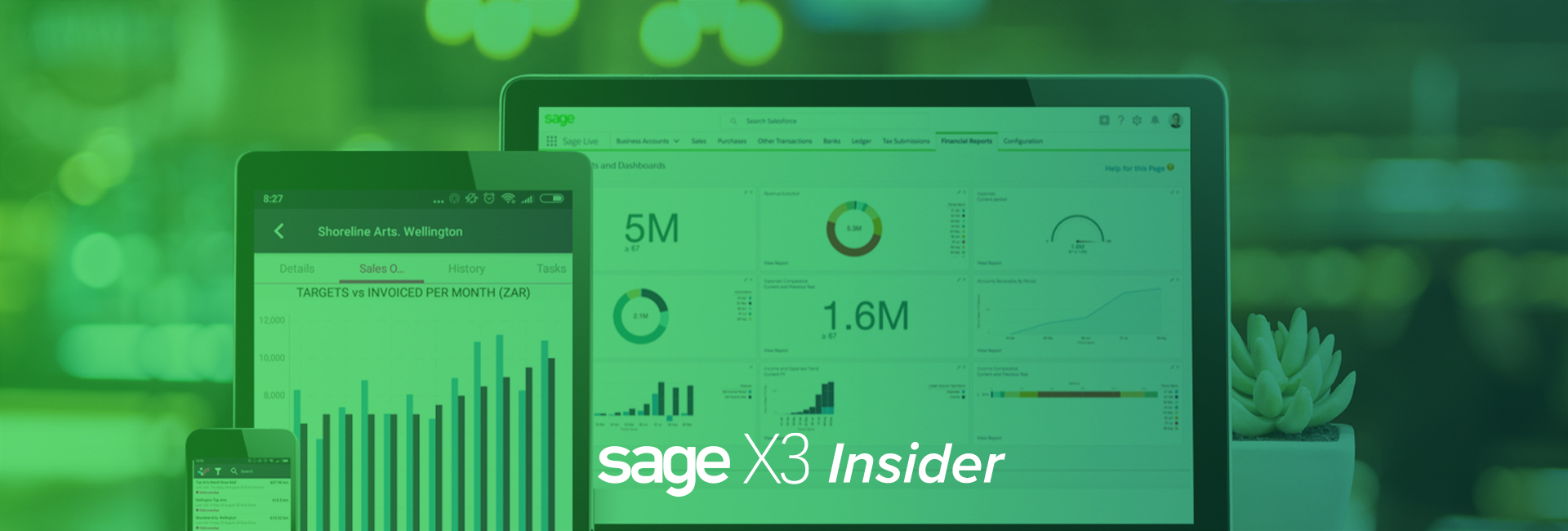
Does your business have sales teams in the field or at home selling products to existing customers? Skynamo’s field sales app eliminates admin for field sales teams, so they can engage with more customers, spend more time with them and sell more.
View live sales activity. Eliminate call reports. Watch sales soar.
Skynamo, the mobile-first field sales platform for Sage X3, increases sales rep productivity and effectiveness by digitizing paper-based processes, automating administrative tasks, and enabling easy access to customer and product information in the field. GPS technology provides managers with a real-time view of sales activity and sales rep effectiveness in the field, so they can coach their reps remotely. Field sales teams using Skynamo typically double – and in some cases triple – the number of customers they visit per week and increase revenue by up to 20% in the first year.
.embed-container { position: relative; padding-bottom: 56.25%; height: 0; overflow: hidden; max-width: 100%; } .embed-container iframe, .embed-container object, .embed-container embed { position: absolute; top: 0; left: 0; width: 100%; height: 100%; }
Integrating Skynamo with Sage X3 provides field sales agents with the latest product and customer information and order history while on the road or onsite at a customer. Skynamo’s integration capability streamlines the ordering process and improves order accuracy, order fulfillment and time to invoice for field sales teams on the road.
New COVID-19 Safety Features
Skynamo now has new COVID-19 features that support contact tracking and tracing and cultivate culture of compliance.
New specialized virus reporting and screening tools designed for field agents and face-to-face sales executives
The COVID-19 Daily Clock-In empowers high-performing field agents and business owners to do what they do best – customer engagement
Mobile, accessible, tracking-enabled Skynamo can be customized to fit all business requirements
For most organizations, personal contact is essential to achieving sales goals. According to research undertaken by Xant, companies with field agents have a closing rate that’s around 30.2% higher than those who rely on calls or emails and the deals are usually 130.2% larger. This makes field sales a critical investment for companies looking for stability in the current market and economy.
The data presents a real challenge. Meeting face-to-face is the competitive advantage necessary in the current economy to stave off competitors vying for the same customers who now have tighter budgets and are looking to cut costs. However, business owners should not risk the health and safety of an organization’s people.
The COVID-19 Daily Clock-in Screening Form ensures that businesses that require field sales teams to visit customers regularly for relationship management and research are able to protect their employees and remain aligned with occupational health and safety guidelines and best practice.
“There are stringent new regulations for doing business and it’s important for companies to feel that they are doing everything they can to protect their employees and their customers,” says Sam Clarke, Founder & CEO of Skynamo. “Employees also want to get back to work and regain a semblance of normal life. However, this is offset by the Corona virus and the risks that it poses to field sales agents. We recognized the value of providing customized COVID-19 check lists in Skynamo to provide both a company’s customers and employees with an extra level of protection and security.”
“The field sales agents log into the app from the moment that they start the day and it asks a series of questions, that can be customized, that pertain to the virus,” says Clarke. “These include things like temperature, general health, a cough – the basic checklist for the symptoms of the disease. Most companies take these details down when the employee enters the building – their temperature is taken and they’re asked a series of questions. For those in the field, this isn’t possible which is where the app comes in.”
The teams take their temperature and details remotely and provide these to their managers using an accessible digital record. They also complete a different list once they’ve seen a customer. They can answer customized questions around whether the customer was ill, or how well the company adhered to social distancing, for example. This not only ensures detailed record-keeping, but it also ensures that legal procedures are tightly followed in the event that the agent does get ill and needs to apply for worker’s compensation.
“The application gives the business a detailed record of field agent movements and this information can be used to track the illness if someone gets sick,” adds Clarke. “For those high performing, active field sales managers and business owners, it’s an effective tool for returning to work in the business as ‘newsual.’”
Throughout the lockdown, Skynamo has been running webinars for organizations across the manufacturing, wholesale, and distribution sectors to support their COVID-19 strategies and planning. Email us to view a recording of the last webinar.
Currently focused on scale and growth, in spite of current market conditions, Skynamo has also developed free consultations for managers and business owners to help them define sales within the pandemic era.
Read more
Have Questions?
Use the form or call us today to speak with one of our Sage X3 experts.
Call: 1-800-719-3307
Contact a Sage X3 Expert