Net at Work is hiring!
Grow your career with us.   Apply Now X
Need Help?
  • Application Remote Support
  • Infrastructure Remote Support
  • Sage HRMS Remote Support
  • Helpdesk
  • General Inquiry
1-800-719-3307
Net at Work Net at Work
  • Solutions & Services
    • ERP/Accounting
      Software & Vendor Selection
      ERP Implementation Services
      ERP Migration Services
      Acumatica
      NetSuite
      Sage X3
      Sage Intacct
      SDMO
      Sage 100 ERP
      Sage 300 ERP
      Sage 500 ERP
      CRM
      Strategic Advisory Services
      CRM Training Camp
      Creatio
      Sage CRM
      Employee Experience
      Sage HRMS
      Rippling
      Workforce Go
      Criterion
      Miviva
      Enterprise Content Management
      Imaging / Scanning
      Document Management
      Workflow Automation
      Solutions
      Nonprofit Solutions
      Abila by Community Brands
      NetSuite
      Sage
      Salesforce
      IT and Security Services
      Managed IT Services
      Fractional CIO Services
      Cloud Services
      Cloud at Work Sage Hosting
      DR/Business Continuity Planning
      Compliance & Security
      Storage & Recovery
      Networking
      IT Security Services
      Communications
      Web Solutions
      Services Overview
      B2B Technology Suite
      Magento eCommerce
      WordPress CMS
      Systems Integration
      Website Managed Services
      Online Marketing & SEO
      ERP eCommerce Integration
      Additional Solutions
      Enterprise Business Intelligence
      Avalara Automated Tax Solutions
      Fortis Payments
      Sage Fixed Assets
      Vertex SMB Sales and Use Tax
      Prime Foodservice Software
      Rental 360
  • Industries
    • Industries
      Chemicals
      Construction
      Discrete Manufacturing
      Field Service
      Food & Beverage
      Healthcare
      Industrial Manufacturing & Equipment
      Medical Devices
      Nonprofit
      Private Equity
      Retail
      Wholesale Distribution
  • Learning Center
    • Online Resources
      Recorded Webinars
      Whitepapers
      Ebooks
      Success Stories
      Upcoming Events
      Live Webinars
      Seminars
      Virtual Training Courses
      Training Courses
      View all available training course options
  • Company
    • Why Us
      Who We Are
      Management
      Our Partners
      Locations
      Careers
      News
      Press Releases
      Success Stories
      Net at Work Blog
      Contact Us
      1.800.719.3307
      Email Us
      Programs
      Alliance Partnership Program
      Women at Work
      Diversity and Inclusion
  • Blog
  • Contact Us
  • Contact Us

Home » Newsletters » Sage 300 Newsletter – March 2017 » Sage Intelligence Reports – Hiding Rows Based on Values

Sage 300

Sage 300 Newsletter – March 2017

Keeping You Up-To-Date With Information About Sage 300

Sage Intelligence Reports – Hiding Rows Based on Values
By: Michael Macke, Sage 300 Business Consultant

Hiding rows with zero amounts is a common need for producing professional financial reports.  Financial Reporter made life simple with its ability to use values in cells to indicate if zero amounts should be hidden.  Since Sage Intelligence and the Financial Report Designer utilize Excel Template files, you now have many options on how to ride rows.  However, there are challenges when hiding rows based on values since most of the time we do not wish to have these rows permanently hidden after saving our report templates.

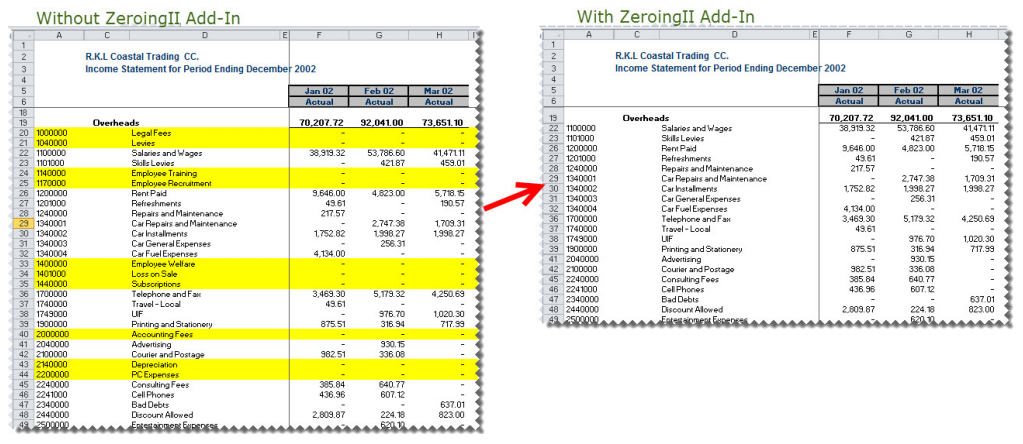
The best practice to hide your rows in Sage Intelligence is to use the Zeroingll Add-In Function.  The power of this add-in over other options is that it automatically hides rows every time the report runs.  The add-in also allows you to unhide any previously hidden rows before applying the action to the report.  This saves you from manually updating and unhiding rows that may not have had values in the report’s previous run.
sage-intel1

Updating Your Reports

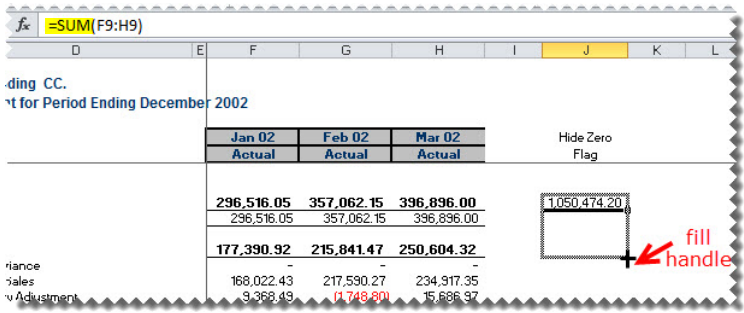
You will need to update your report depending on how you desire the hidden row functionality to display.  For hiding zero values, an additional column is typically added to reports.  The new column totals the row values to ensure only rows having zero values in all columns will be hidden.  Any row that you would like to remain for formatting purposes can receive an “X” instead of the SUM() formula.  Hiding the new column will allow you to maintain your desired format.
sage-intel2

Setting the Zeroingll Add-In Function

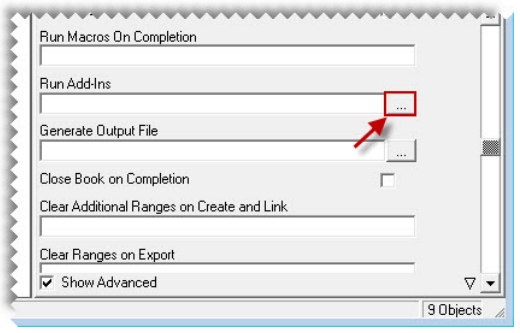
When you open the report manager and select the desired report, you will want to check/enable the Show Advanced checkbox at the bottom of the Properties tab.  From this screen you will click the ellipses button for Run Add-Ins.
sage-intel3

A new window will appear to select add-ins.  Follow the steps below:

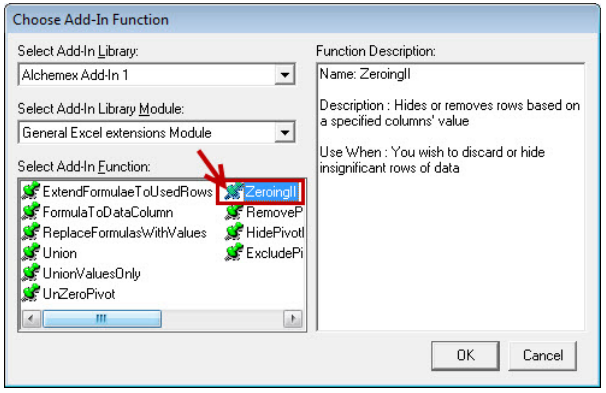
  1. Add-In Library: Alchemex Add-in 1
  2. Add-In Library Module: General Excel extensions Module
  3. Add-In Function: Zeroingll

sage-intel4

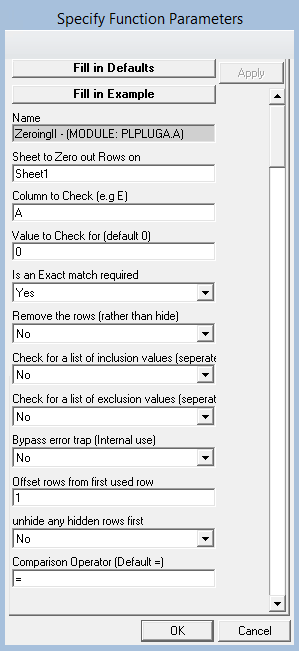
You can select to fill in the default values, which will populate the fields similar to the picture below.  Once the default values are set, you can change the worksheet name (Sheet to Zero out Rows on), the column to confirm if 0 – or another specified value – is present (Column to Check), and the Value to Check.
sage-intel5

Please note, you will want to set the “unhide any hidden rows first” field to Yes.  This ensures any previously hidden rows will be visible if the values are no longer zero.  This setting will allow you to make updates and save your template without needing to unhide all rows during the save process.

sage-intel6

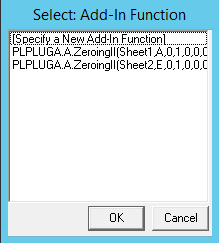
If you need to apply the function to multiple sheets in the report, you will need to repeat the process of adding the Add-in to every sheet.  You will select the Add-In Ellipses and then select (Specify a New Add-In Function.  You will follow the same process as before, but you will specify a different worksheet name and likely a different Column to Check.  The screenshot below shows two sheets applying the Add-In (Sheet1 and Sheet2) for columns A and E respectively.
sage-intel7

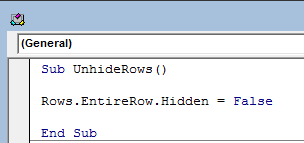
If you want the option to unhide all hidden rows while you have the results in excel.  You can add a simple macro to the workbook (make certain your template is macro-enabled).  The picture below shows the code for a macro to unhide all hidden rows.
sage-intel8

For the entire guide on using the Zeroingll Add-in, you may use this link.

For an additional method for hiding zero rows after a report has been generated use this link.

To stay up to date on the latest Sage 300 2016 news, visit Net at Work online!

« Return to Newsletter
  • This field is for validation purposes and should be left unchanged.
In This Issue
  • From the Desk of the Sage 300 Practice Director
  • Sage Intelligence Reports – Hiding Rows Based on Values
  • Sage 300 Alerts and Workflow
  • Sage Summit 2017 – Register For Only $99!
  • Top 3 Benefits of CRM, ERP and eCommerce Integration
  • Sage 300 (Accpac) – New Webinar Series
  • Sage 300 Support

    Helpdesk:
    P: 888.494.9479
    E: helpdesk@netatwork.com

    Upcoming Live Webinars

    Sage 300 Virtual Educational Courses – See Dates/Times

    Supercharge Sage 300 with Fortis Payments
    October 8 | 2pm ET
    Register Here

    Year End CRM Evaluation: 2025 Platform Comparison Guide
    October 8 | 2pm ET
    Register Here

    Stop Microsoft 365 Attacks Before They Hit
    October 14 | 2pm ET
    Register Here

    Popular Recorded Webinars

    The Case for Hosting Sage 300 in the Cloud

    Sage 300 & Finance Leadership in Action: Outpace the Competition for Top Talent

    Extend the Power of Sage 300 with Seamless eCommerce Integration

    Sage + DocLink – Document Management, Less Paper, and Smarter Workflow

    Sage 300 Webinar Archive

    View our library of on-demand recorded webinars.

    Newsletter Archive

    Read our previous Sage 300 Newsletters here

    Connect With Us

    Business Applications

    • Overview
    • Software & Vendor Selection
    • ERP Implementation Services
    • ERP Migration Services
    • Cloud ERP
    • CRM
    • Employee Experience
    • ECM
    • Nonprofit Solutions

    Learning Center

    • White Papers & Guides
    • Ebooks
    • Training Courses
    • Virtual Training Courses
    • Success Stories
    • Live Webinars
    • Recorded Webinars
    • Trials

    Infrastructure Solutions

    • Managed IT Services
    • Fractional CIO & Advisory Services
    • Cloud Services
    • Cloud at Work Sage Hosting

    Support

    • Application Remote Support
    • Infrastructure Remote Support
    • Sage HRMS Remote Support
    • General Inquiry
    • Helpdesk

    Web Development

    • Services Overview
    • Magento eCommerce
    • WordPress CMS
    • Systems Integration
    • Website Managed Services
    • ERP eCommerce Integration

    Company Information

    • Why Us
    • Alliance Partnership Program
    • Women at Work
    • Diversity and Inclusion
    • Partners
    • Careers
    • News
    • Blog
    • Privacy Policy
    • Contact Us

    Additional Solutions

    • Enterprise Business Intelligence
    • Avalara Automated Tax Solutions
    • Fortis Payments
    • LeaseQuery Lease Accounting
    • Sage Fixed Assets (Sage FAS)
    • Vertex SMB Sales and Use Tax
    • Prime Foodservice Software
    • Rental 360
    • SDMO

    Industries

    • Chemicals
    • Construction
    • Discrete Manufacturing
    • Field Service
    • Food & Beverage
    • Healthcare
    • Industrial Manufacturing & Equipment
    • Medical Devices
    • Nonprofit
    • Private Equity
    • Wholesale Distribution
    Net at Work
    Net at Work (HQ)
    575 8th Ave
    New York, NY 10018

    P: (800) 719-3307
    info@netatwork.com
    Locations Across North America »
    Visit our sister companies:
    Cloud at Work - Sage Application Hosting
    Pixafy - An eCommerce Agency
    Docutrend
    WordPress Image Lightbox Plugin


    Our website uses cookies to ensure you get the best experience. Learn more.

    I Understand