
Sage 100 Newsletter – Q2 2025
Keeping You Up-To-Date With Information About Sage 100
Sage 100 P/O Landed Costs for Tariffs
Landed Costs for Tariffs in Sage 100
Tariffs don’t have to remain hidden or disconnected from your inventory valuation. If you’re using FIFO, LIFO, Average Cost, or Lot/Serial valuation methods, you can have better visibility into items’ profitability. With the Landed Cost feature, you can roll those tariffs (and other shipping-related expenses) into your inventory costs and recognize the COGS at the time of the sale.
❗ A note to Standard Cost users: Sage 100 handles Standard Cost differently. The landed costs will immediately hit your purchases price variance account instead of rolling into the cost of the item.
What Exactly Are Landed Costs?
These are costs incurred to bring goods into your warehouse, such as Tariffs, Freight (ocean, trucking), Import Duties, Insurance, Handling or port fees, etc.
Let’s walk through how to set this up in Sage 100 step-by-step.
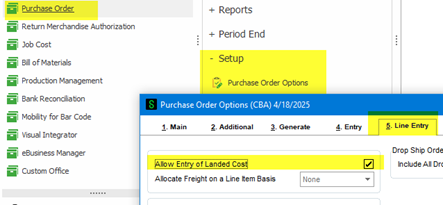
Step 1: Enable Landed Costs
- Go to Purchase Order > Setup > Purchase Order Options > Line Entry tab.
- Enable “Allow Entry of Landed Cost” to activate this feature.
Step 2: Configuring Landed Cost Types
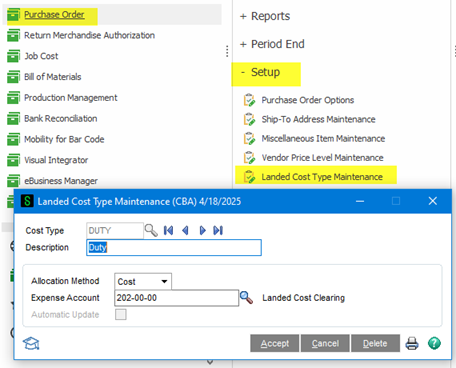
Navigate to Purchase Order > Setup > Landed Cost Type Maintenance:
- Create cost codes and define allocation methods clearly:
- By Cost: distributed based on item cost.
- Example: If one item accounts for 60% of the total receipt value, it gets 60% of the landed cost.
- By Weight: Weight must be entered in Item Maintenance on the Main tab.
- By Quantity: Distributed based on units received.
- Example: If you receive 100 pieces total and an item makes up 20 of those, it receives 20% of the landed cost.
- By Volume: Based on cubic volume of items: Volume must be entered in Item Maintenance on the Main tab.
- By Cost: distributed based on item cost.
- Assign a GL account for expense or recovery tracking.
- Consult with your accountant for assistance with determining the correct GL accounts to use.
- This account will be credited when the goods are received.
- If using a clearing account, this account will be offset when entering the AP Invoice for the landed cost.
Step 3: Entering Landed Costs in Receipt of Goods
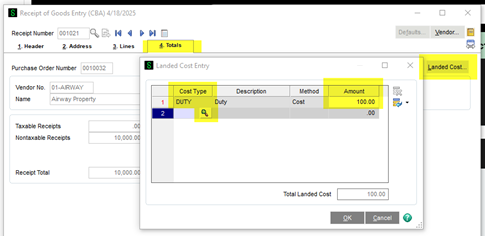
Landed cost entries must occur at the receipt stage. (If you’d like a customization to enter landed costs at the Purchase Order rather than Receipt Entry, please contact us.)
- Use Receipt of Goods Entry > Totals tab.
- Click the “Landed Cost” button.
- Enter estimated costs (e.g., Freight $100, Tariff $352.85).
- Costs automatically allocate based on predefined methods.
- On each line of the receipt, ensure the landed cost checkbox is checked.
- This value defaults from the “Allocate Landed Cost” field in Item Maintenance on the Additional tab.
Why Enter at Receipt Stage?
Because inventory values and GL postings update immediately upon receipt. This ensures accuracy in COGS calculations and inventory valuation.
FIFO/LIFO Implications
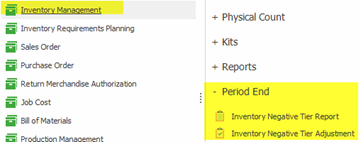
For FIFO or LIFO users, landed costs affect FIFO/LIFO layers (aka tiers) at receipt. Be cautious with negative layers. To manage this, regularly use Inventory Negative Tier Reports and the Negative Tier Adjustment Utility. Run these at least monthly, or more frequently.
Common Challenges & Tips
- Landed costs are often unknown at receipt. Use estimates.
- Bills may arrive later, so you must reconcile regularly when booking the AP Invoice.
- Enter estimates proactively to avoid major discrepancies.
Best Practices
- Test landed costs thoroughly in a test environment first.
- Always consult your accountant as changes impact tax and inventory reporting.
- Consider customizations for frequent cost variations or rebates. Reach out to use for help with customizations.
Need further assistance? Contact our support team for guidance! ✉📞