
Sage 100 Newsletter – Q2 2025
Keeping You Up-To-Date With Information About Sage 100
How to Customize the Asset List View for Sage Fixed Assets
Sage Fixed Assets – Remove the Clutter!
When Sage Fixed Assets is first opened, you see the “Asset List View”. Did you know that you can customize the view to only display the columns that are important to you?
In the following example, you can see a horizontal scroll bar because there are too many columns to fit in the size of the window:
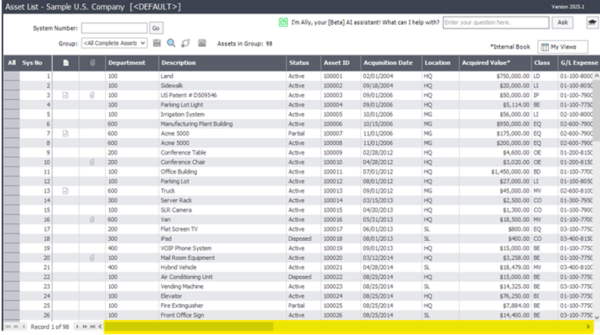
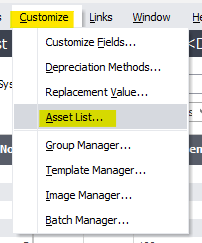
You can customize which columns are displayed to see only the information you care about, at a glance. Simply go to the Customize pull-down menu and select “Asset List”:
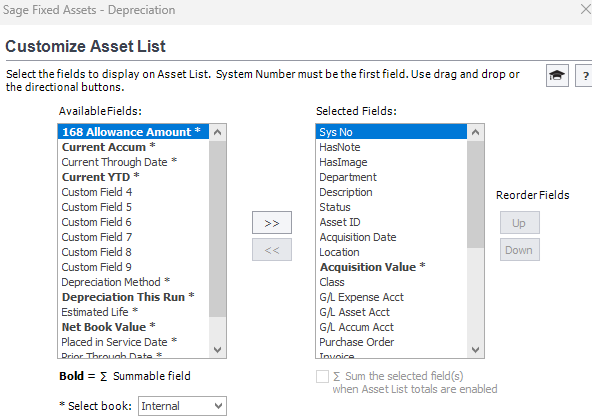
In the “Customize Asset List” window (see below), select fields and click the double-arrow buttons to add or remove columns from the view. Select fields and click the “Up” or “Down” button to change the order in which they appear:
Here’s what I decided to go with:
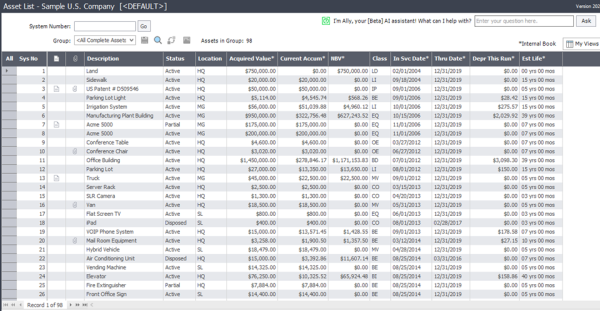
You can also rearrange the order in which the columns appear by clicking a column header and dragging it to where you want it.
We hope this is helpful to you!