How to Create a Tariff Miscellaneous Charge
in Sage 100
If you need a simple way to handle occasional tariff surcharges in Sage 100, consider using a miscellaneous charge. This is an easy approach to test or implement initially, especially if you’re not yet ready for more comprehensive methods like landed costs and pricing adjustments.
Steps to Create the Tariff Misc. Charge:
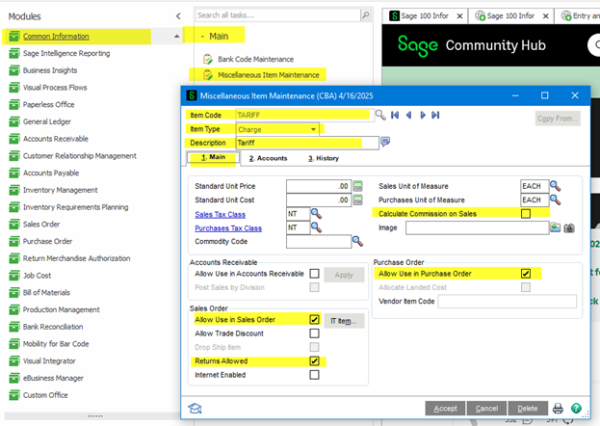
- Navigate to:
- Common Information > Main> Miscellaneous Item Maintenance
- Main Tab Settings:
- Item Type: Set to Charge (❗This step is crucial. ❗)
- Accidentally selecting “Miscellaneous,” which is the default, will cause Sage 100 to post to an Inventory Account with an offset to COGS (in addition to a credit to sales).
- Charge ensures you credit only one account, offsetting the debit to Accounts Receivable. Read on for more information.
- Enter a Description, e.g., “Tariff.”
- Item Type: Set to Charge (❗This step is crucial. ❗)
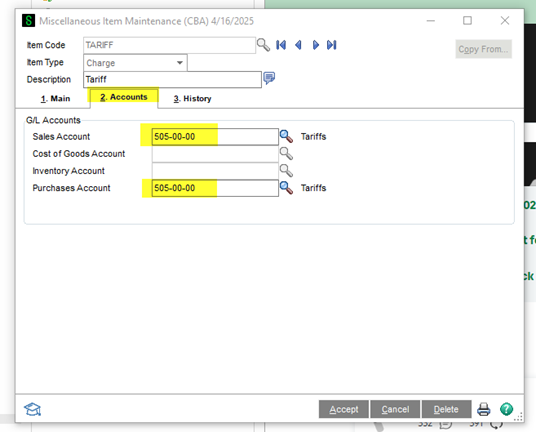
- Account Tab Settings:
- Sales Account:
- Enter the General Ledger account to be credited upon Sales Order Invoice posting. (Offsetting Accounts Receivable)
(This does not have to be an actual sales account; it could be a clearing account.)
- Enter the General Ledger account to be credited upon Sales Order Invoice posting. (Offsetting Accounts Receivable)
- Purchases Account:
- Enter the account to be debited upon Receipt of Invoice posting. (Offsetting A/P)
- Sales Account:
Example Setup:
-
- Sales Account: 505-00-00 (Tariffs Clearing – Credit)
- Purchases Account: 505-00-00 (Tariffs Clearing – Debit)
Note: The above example uses a single clearing account under expenses. Your company may prefer separate accounts for debits and credits. ❗ Be sure to consult with your accountant for advice. ❗
- Optional Settings on the Main Tab:
- Calculate Commission on Sales: Uncheck to exclude tariff charges in commission calculations.
- Allow Returns: Select this option based on your preference.
A Note Regarding Landed Costs:
If your business requires more accuracy or detail in tracking tariffs, consider using Landed Costs, which provide a more robust and precise solution within Sage 100. Please contact us for more information.
A Note Regarding Automation:
If you find entering the tariff miscellaneous charges cumbersome and would like to automate this process, get in touch with us to discuss options to streamline.
Using the Tariff Miscellaneous Charge on a Sales Order:
After creating your tariff miscellaneous charge, it can be easily added to Sales Orders and Purchase Orders:
In Order Entry:
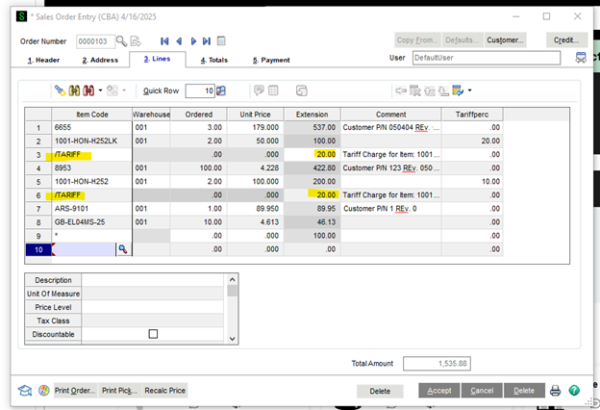
- Go to the Lines Tab
- Enter the miscellaneous charge item code preceded by a forward slash (“/”). For example:
- /TARIFF
- Enter the tariff charge amount in the Extension field.
💭 Tip: If you don’t remember the exact name of your miscellaneous charge code, simply type a forward slash (/) and then press the F2 key on your keyboard to open the lookup window. You can also type partial codes like /T and press F2 to quickly find all miscellaneous charge codes beginning with the letter T.