
Sage 300 Newsletter – March 2016
Keeping You Up-To-Date With Information About Sage 300
FAQ: Moving from Sage 300 Financial Reporter to Sage Intelligence
Thank you to all of you who joined our “Tips on Moving from Sage 300 Financial Reporter to Sage Intelligence” Live Webinar! We had one of Net at Work’s largest Webinar sessions. We had some great questions from the webinar that we didn’t have enough time for, and we thought this would be a good place to help answer some of your questions.
In case you missed it, here is the link for the recording: On-Demand Recording & Slide Deck: Tips on Moving from Sage 300 Financial Reporter to Sage Intelligence
Formatting and Design:
Q: Can you suppress zero lines?
A: Yes. Sage Intelligence provides a macro that allows zero lines to be suppressed. This can be set before the report is run, or afterwards. (If you intend to make updates to your report and save the template you will want to run the report without suppressing zero lines – or they will become permanently suppressed)
Q: How can we set up quarterly reporting and year to date columns on one sheet for four quarters?
A: This is fairly easy to do. We can set up four columns with the formula in each column to return the actuals for three periods. By doing so, each column will report a different quarter. For the Year to Date column, we can use the Year to Date formula, or sum the four columns using Excel’s native sum formula.
Q: Can Sage Intelligence use GL Account Groups in the design?
A: Yes, definitely. We recommend using GL Account Groups in the design to make the maintenance of the reports easier. Instead of referencing a GL Account, we can simply refer to a GL Account Group in the formula.
Q: Can we design financials by using a range of accounts instead of specifying just one account per line?
A: Yes, definitely. This is the way we recommend financials be designed as well. This can be done using Account Groups, as mentioned above, or specifying a range of accounts. To specify a range of accounts, you can use this syntax: “4000 TO 4999”. To define multiple ranges: “5000 TO 5051 + 5500 TO 5600”
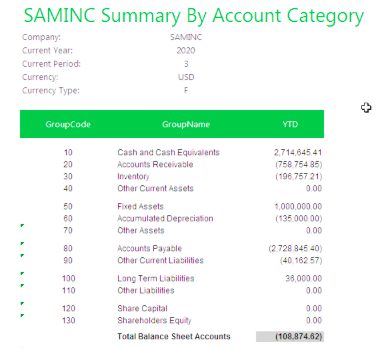
Q: How can we create a Reporting Tree?
A: In the Sage Intelligence Designer Task Pane, select the “Tree” option. Click on “Manage” and then “Add” and you can define the Reporting Tree in this following screen. (You can use question marks and asterisks as wildcard characters)
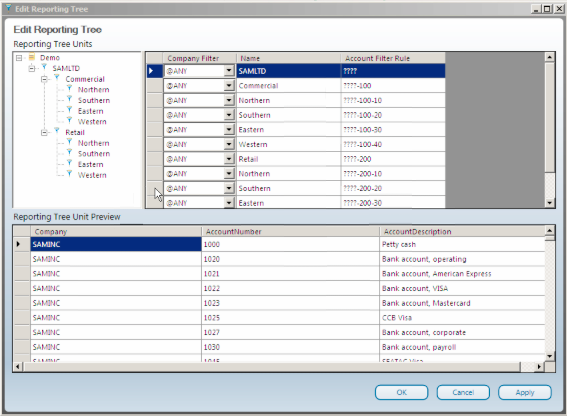
Q: Can you query multiple segments in different columns?
A: Yes, we can. We can use an Excel cell reference in the formula where the segment labeled. The formula in each column would reference the cell that contains the segment value we’d like to report on. Using the Reporting Tree is another option to define group multiple segment values together.
Q: Can we consolidate by the second segment? For example, consolidate all accounts with “-01” and “-02” values in the second segment together?
A: Yes, we can reference both segment values in the financial formula to add the amounts together. The Reporting Tree can be a great way to do this as well.
Q: Do we need to manually update the report when there are new GL accounts?
A: The best way to design the reports is to use Account Groups or ranges in the definition for the accounts. Also, Sage Intelligence v2016 has two new tools “Missing Accounts” and “Dynamic Account Ranges” that can help you locate missing GL accounts if you’d still like to design your financials with specific GL accounts per line.
Q: When running reports for multiple years, can the reports actually show data for multiple years?
A: Yes, if the year is not specified, it will report the data for all the years.
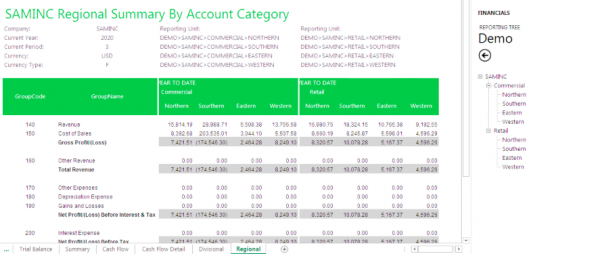
Q: What does the Reporting Tree look like using the Report Viewer?
A: The Reporting Tree looks like the same when using the Report Manager or the Report Viewer. Here’s what it looks like.
Q: What if you have multiple account numbers (15+) that make up one line on a financial statement?
A: The best way to manage your financials would be to make use of the Sage 300 Account Groups. You can assign those accounts to the same Account Group, and refer to the Account Group in the formula. Alternatively, you can list the GL Accounts in the Account Definition. The syntax is: “4000 + 4002 + 4010 + 4015”
Connecting to Data:
Q: Is it possible to run reports with provisional journal entries?
A: Yes, it is. With the Connector License, we can modify and create queries to include provisional journal entries.
Q: Can we report on amounts based on the source ledger?
A: Yes. There is an out of the box report “General Ledger Transactions Details” that you can run and it includes the Source Code and Source Ledger information. Also, using the Connector License, you can create custom queries that include any of the fields in the Sage 300 database to report off of.
Q: Can Sage Intelligence be used for Inventory Management?
A: Yes, certainly. There is an “Inventory Master” report that shows Inventory information. And with the Connector License, we can query any data in Sage 300. In fact, Sage Intelligence can connect to any database (SQL, Oracle, MS Access, etc.) that we can create an ODBC for.
Q: Can Sage Intelligence run the same type of reports as Stonefield Query?
A: Yes, it can return the same results that are being return in your Stonefield Query reports. The information will be presented in Excel, though. After the report is generated, all the formatting is done in Excel.
Q: How can we connect to additional databases? For example Technisoft Service Manager?
A: From the Sage Intelligence Connector, we can create a container to connect to any SQL Database.
Technical Setup and Licensing:
Q: If Sage is installed on a server, can the one license be shared between users?
A: Yes. The License Manager allows you to transfer the one license to different users. (Concurrent licensing versus user)
Q: Does Financial Reporter work with Excel 365?
A: No, unfortunately, Financial Reporter is not compatible with Office 365. Which is part of the reason we’re informing our clients to make plans to convert to Sage Intelligence.
Q: When trying to open Sage Intelligence, I get an “Active X” error.
A: Please give us a call. Your workstation simply needs to be setup to use Sage Intelligence.
Q: What Sage Intelligence modules and licenses are available?
A: Below are the different modules in Sage Intelligence. Sage 300 comes with one Report Manager license, the Security Manager, and the License Manager.
- Report Manager
The Report Manager provides an interface to create, run and modify reports. - Report Viewer
The Report Viewer provides an interface to run the reports directly. - Report Designer
The Report Designer consists of the Layout Generator which allows you to fast track the building of powerful financial reports with an easy-to-use, drag-and-drop interface. - Connector
The Connector maintains the connectivity between Sage Intelligence Reporting and the data sources. - Security Manager
The Security Manager controls the accessibility of Sage Intelligence Reporting reports by the various users. - License Manager
The License Manager maintains the licenses installed for Sage Intelligence Reporting. - Analysis Module
Perform multidimensional analysis of large volumes of data via OLAP
Training & Materials:
Q: Can we get all the steps for converting to Sage Intelligence?
A: Sage has provided a user guide. Here is a link for the download. And you can watch the webinar again if you’d like to follow the video on how to convert. If you have any questions, please don’t hesitate to contact us.
Q: Is there an example for converting a Project Job Costing Financial Statement?
A: The conversion would be the same if you are using the Financial Reporter.
Q: Is there a manual that comes with Sage Intelligence that we can review?
A: Yes, there is an active Sage Intelligence user community website. From this link, you can download any of the documentation that comes with Sage intelligence:
http://www.sageintelligencecommunity.com/group/sage300erpintelligence
Hope you found the Questions and Answers helpful. If you have any other questions, please let us know. We’d be glad to assist!