
Net at Work is hiring!
Grow your career with us.   Apply Now X
Need Help?
  • Application Remote Support
  • Infrastructure Remote Support
  • Sage HRMS Remote Support
  • Helpdesk
  • General Inquiry
1-800-719-3307
Net at Work Net at Work
  • Solutions & Services
    • ERP/Accounting
      Software & Vendor Selection
      ERP Implementation Services
      ERP Migration Services
      Acumatica
      NetSuite
      Sage X3
      Sage Intacct
      SDMO
      Sage 100 ERP
      Sage 300 ERP
      Sage 500 ERP
      CRM
      Strategic Advisory Services
      CRM Training Camp
      Creatio
      Sage CRM
      Employee Experience
      Sage HRMS
      Rippling
      Workforce Go
      Criterion
      Miviva
      Enterprise Content Management
      Imaging / Scanning
      Document Management
      Workflow Automation
      Solutions
      Nonprofit Solutions
      Abila by Community Brands
      NetSuite
      Sage
      Salesforce
      IT and Security Services
      Managed IT Services
      Fractional CIO Services
      Cloud Services
      Cloud at Work Sage Hosting
      DR/Business Continuity Planning
      Compliance & Security
      Storage & Recovery
      Networking
      IT Security Services
      Communications
      Web Solutions
      Services Overview
      B2B Technology Suite
      Magento eCommerce
      WordPress CMS
      Systems Integration
      Website Managed Services
      Online Marketing & SEO
      ERP eCommerce Integration
      Additional Solutions
      Enterprise Business Intelligence
      Avalara Automated Tax Solutions
      Fortis Payments
      Sage Fixed Assets
      Vertex SMB Sales and Use Tax
      Prime Foodservice Software
      Rental 360
  • Industries
    • Industries
      Chemicals
      Construction
      Discrete Manufacturing
      Field Service
      Food & Beverage
      Healthcare
      Industrial Manufacturing & Equipment
      Medical Devices
      Nonprofit
      Private Equity
      Retail
      Wholesale Distribution
  • Learning Center
    • Online Resources
      Recorded Webinars
      Whitepapers
      Ebooks
      Success Stories
      Upcoming Events
      Live Webinars
      Seminars
      Virtual Training Courses
      Training Courses
      View all available training course options
  • Company
    • Why Us
      Who We Are
      Management
      Our Partners
      Locations
      Careers
      News
      Press Releases
      Success Stories
      Net at Work Blog
      Contact Us
      1.800.719.3307
      Email Us
      Programs
      Alliance Partnership Program
      Women at Work
      Diversity and Inclusion
  • Blog
  • Contact Us
  • Contact Us

Home » Newsletters » Sage 100 Newsletter – Q3 2019 » Data Analysis with Business Insights Explorer in Sage 100

Sage 100

Sage 100 Newsletter – Q3 2019

Keeping You Up-To-Date With Information About Sage 100

Data Analysis with Business Insights Explorer in Sage 100

By: Jane Amorim, Business Analyst / Consultant

You have within Sage 100 a tool that will give you the data you need quickly and with only a few clicks. You can export lists of customers whom have purchased from you in the past month, lists of invoices that are overdue, POs remaining to be fulfilled, and more with the simple Business Insights Explorer tool (aka BIE).

Most modules in Sage include an “Explore” folder which contains a handful of “views.” Each of these views can be customized and later rerun on demand, just like you would a report.  The advantage of a view however, is that you can view the data easily in a grid and sort and filter on command.  You can also build charts and export the data to Excel, if you prefer to further your analysis there.

To give you a jump start, we will walk through a simple example.  In this installment, we’ll be creating a list of customers with open invoice balances.  We will group this list by salesperson and add sub totals and a grand total.

Step 1: Open the Customer Open Invoices View found under Accounts Receivable>Explore
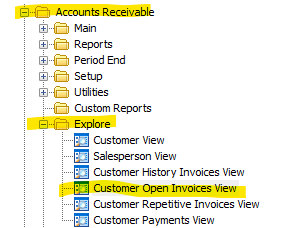
We’ve selected this view because it will list all open invoices’ balances.  Side note: “Historical” views (these have the word History in their name) are often slow to run due to the amount of data they hold.  So, bear that in mind as you create those types of views.

Once the view has loaded, you may receive a message like the one below indicating the default row limit has been reached.  BIE views are initially limited to display only the first 2,000 records as waiting for all the data to load could literally take hours (depending on how much historical data you are retaining).  We going to increase this limit.
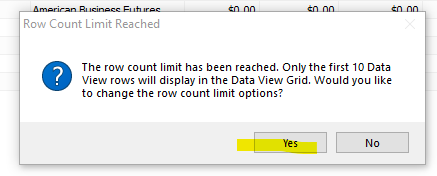
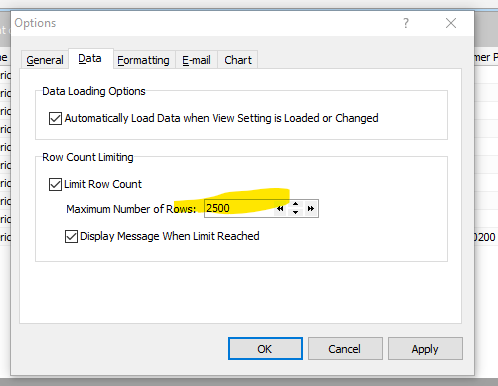
Consider the number of actual open invoices you will likely need to display in this view.  (You may want to overshoot.)  Click “Yes” on the message above and type that number into the “Maximum Number of Rows” box in the screen that appears.  Click OK to return to your BIE view.
Step 2: Show Only Open Balances

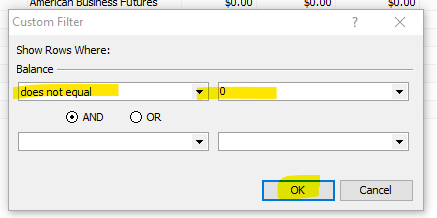
Displayed on screen you should have a list of customer invoices.  Some paid, some not.  This is because the data source that drives this view happens to also hold recently paid invoices.  For this reason, we must filter the list to only display invoices with a balance that is not equal to zero (assuming we want to include credit memos which will have a negative balance).

Start by clicking on the drop-down arrow in the “Balance” column and selecting “(Custom).”
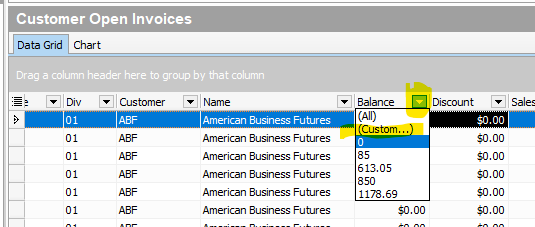
Select “does not equal” from the first drop down and type 0 into the next box.  Click OK.  (If you needed to display invoices over a certain amount, you could do that, too.  Just choose the appropriate option from the drop down and enter the dollar value instead of 0.)
Step 3: Customize Your Columns

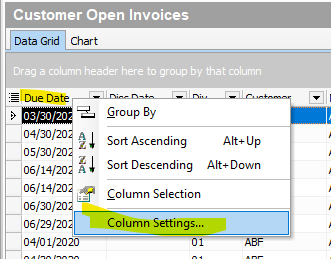
You should now have a list of invoices with open balances.  You also probably have some columns that you don’t really need to see for the purposes of this view.  To remove them (and to add more columns), right click on any column heading and select “Column Settings” from the menu that appears.
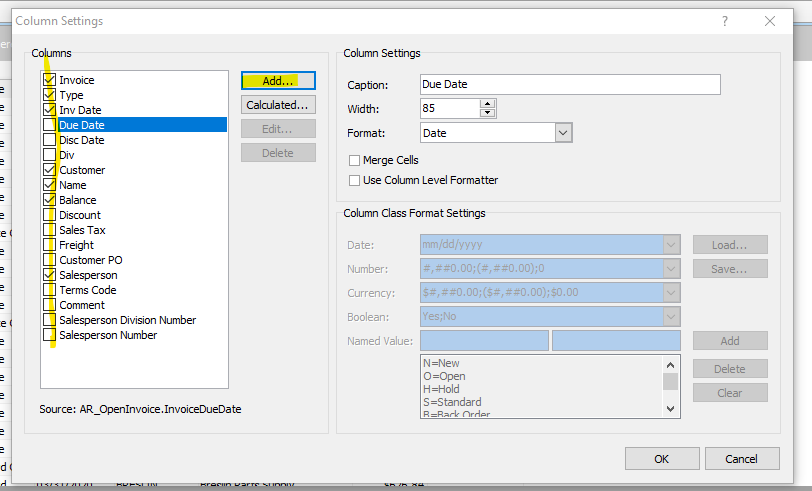
Uncheck the columns you do not want to see and check the ones you want to add.  If a column you would like to add (including custom fields) is not on the list, click on the “Add” button.
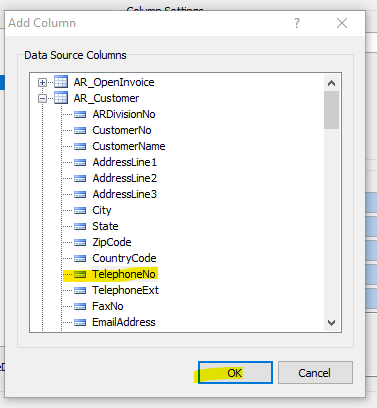
Scroll through the available data sources (tables) and fields and select the column you would like to add.  Click OK and then OK again to close the Column Settings screen.
Step 4: Group and Sort Records by Salesperson

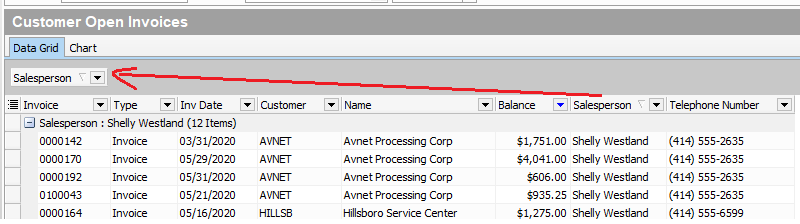
Click and drag the Salesperson column heading and drop it into the gray section/bar just above the grid, as shown in the screenshot below.  This will automatically group and sort your data by salesperson.

(Note that you can also sort by clicking on any column heading.)
Step 5: Add Totals

To add totals to your view, depress the Group Summary Footer and Summary Footer buttons:
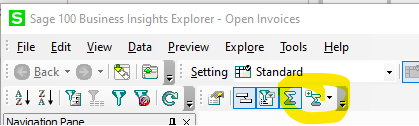
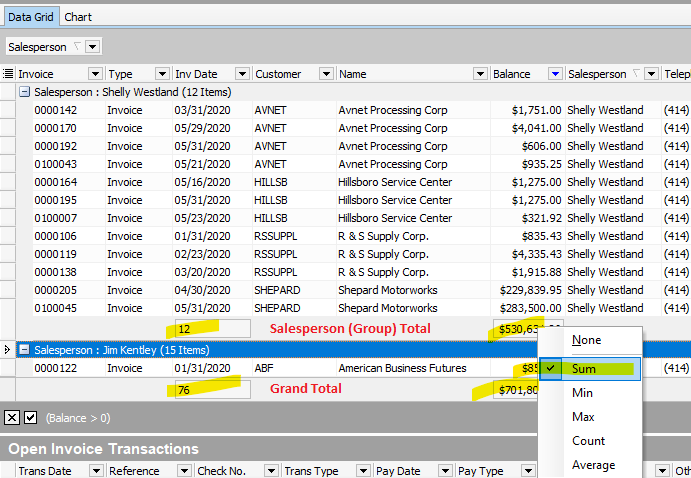
This will add boxes below the columns in your view that can be summarized.  You will see these under each of your groups, as well as at the end of the view where you would add grand totals.
Step 6: Save Your View

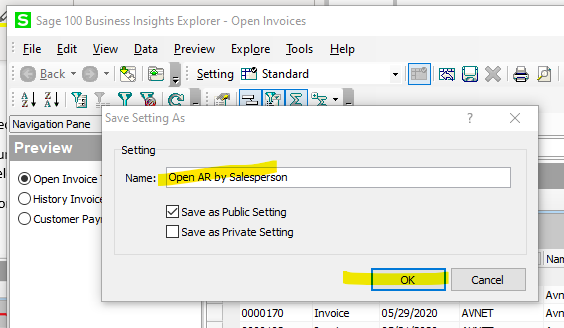
Click on the File menu at the top left corner and select “Save Setting” and enter a name for your view when prompted.  Click the checkbox to “Save as Private Setting” if you wish to be the only one able to use this custom view, or leave “Save as Public Setting” if you’d like others to be able to access and modify your view.
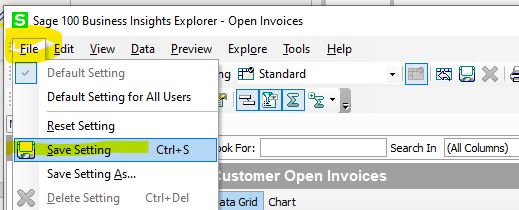
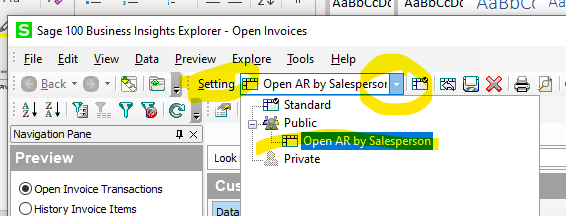
To access your view in the future, click on the drop-down menu next to “Setting” and select your saved view.

You can create as many custom views as you like for different purposes and find them stored here under this menu.
That’s all for now!  If you found this helpful, stay tuned to future installments to learn more about views including how to export them to Excel, format columns, and add calculations and charts.


« Return to Newsletter
  • This field is for validation purposes and should be left unchanged.
In This Issue
  • From the Desk of the Sage 100 Consulting Manager, Lisa Margolies
  • Data Analysis with Business Insights Explorer in Sage 100
  • Windows 7 End of Life
  • Why You Should Go Paperless
  • Measuring the Savings of Cloud-based HR Software
  • Featured Consultant: David Hurley Sage 100 Business Analyst / Consultant
  • Sage 100 Support

    Helpdesk:
    P: 888.494.9479
    E: helpdesk@netatwork.com

    Ready to Upgrade Your
    Sage 100?
    Fill out this form and get your free quote
    Request Upgrade Quote

    Request Sage 100
    Consulting Services

    Get Help From Our Sage 100 Consultants
    Request Services

    Sage 100 Live Webinars

    Supercharge Sage 100 with Fortis Payments
    October 8 | 2pm ET
    Register Here

    Year End CRM Evaluation: 2025 Platform Comparison Guide
    October 8 | 2pm ET
    Register Here

    Stop Microsoft 365 Attacks Before They Hit
    October 14 | 2pm ET
    Register Here

    Popular Recorded Webinars

    The Case for Hosting Sage 100 in the Cloud

    What’s New in Sage 100 v2025

    Unified Employee Self-Service Portal, Integrated Seamlessly with Sage 100

    Actionable Tips to Improve AP & AR Process for Sage 100

    Sage 100 – Live Online Training Courses

    Wide range of class topics! Browse the course calendar & register.

    Sage 100 Webinar Archive

    View our library of on-demand recorded webinars.

    Refer a friend, get a $100 Gift Card!

    Submit a Referral / Learn More!
    Do you have a friend or colleague whose company might benefit from utilizing a Net at Work service or solution? If so, refer them to us below and receive a $100 gift card or donation to your charity of choice!

    Connect With Us

    Business Applications

    • Overview
    • Software & Vendor Selection
    • ERP Implementation Services
    • ERP Migration Services
    • Cloud ERP
    • CRM
    • Employee Experience
    • ECM
    • Nonprofit Solutions

    Learning Center

    • White Papers & Guides
    • Ebooks
    • Training Courses
    • Virtual Training Courses
    • Success Stories
    • Live Webinars
    • Recorded Webinars
    • Trials

    Infrastructure Solutions

    • Managed IT Services
    • Fractional CIO & Advisory Services
    • Cloud Services
    • Cloud at Work Sage Hosting

    Support

    • Application Remote Support
    • Infrastructure Remote Support
    • Sage HRMS Remote Support
    • General Inquiry
    • Helpdesk

    Web Development

    • Services Overview
    • Magento eCommerce
    • WordPress CMS
    • Systems Integration
    • Website Managed Services
    • ERP eCommerce Integration

    Company Information

    • Why Us
    • Alliance Partnership Program
    • Women at Work
    • Diversity and Inclusion
    • Partners
    • Careers
    • News
    • Blog
    • Privacy Policy
    • Contact Us

    Additional Solutions

    • Enterprise Business Intelligence
    • Avalara Automated Tax Solutions
    • Fortis Payments
    • LeaseQuery Lease Accounting
    • Sage Fixed Assets (Sage FAS)
    • Vertex SMB Sales and Use Tax
    • Prime Foodservice Software
    • Rental 360
    • SDMO

    Industries

    • Chemicals
    • Construction
    • Discrete Manufacturing
    • Field Service
    • Food & Beverage
    • Healthcare
    • Industrial Manufacturing & Equipment
    • Medical Devices
    • Nonprofit
    • Private Equity
    • Wholesale Distribution
    Net at Work
    Net at Work (HQ)
    575 8th Ave
    New York, NY 10018

    P: (800) 719-3307
    info@netatwork.com
    Locations Across North America »
    Visit our sister companies:
    Cloud at Work - Sage Application Hosting
    Pixafy - An eCommerce Agency
    Docutrend
    WordPress Image Lightbox Plugin


    Our website uses cookies to ensure you get the best experience. Learn more.

    I Understand