Net at Work is hiring!
Grow your career with us.   Apply Now X
Need Help?
  • Application Remote Support
  • Infrastructure Remote Support
  • Sage HRMS Remote Support
  • Helpdesk
  • General Inquiry
1-800-719-3307
Net at Work Net at Work
  • Solutions & Services
    • ERP/Accounting
      Software & Vendor Selection
      ERP Implementation Services
      ERP Migration Services
      Acumatica
      NetSuite
      Sage X3
      Sage Intacct
      SDMO
      Sage 100 ERP
      Sage 300 ERP
      Sage 500 ERP
      CRM
      Strategic Advisory Services
      CRM Training Camp
      Creatio
      Sage CRM
      Employee Experience
      Sage HRMS
      Rippling
      Workforce Go
      Criterion
      Miviva
      Enterprise Content Management
      Imaging / Scanning
      Document Management
      Workflow Automation
      Solutions
      Nonprofit Solutions
      Abila by Community Brands
      NetSuite
      Sage
      Salesforce
      IT and Security Services
      Managed IT Services
      Fractional CIO Services
      Cloud Services
      Cloud at Work Sage Hosting
      DR/Business Continuity Planning
      Compliance & Security
      Storage & Recovery
      Networking
      IT Security Services
      Communications
      Web Solutions
      Services Overview
      B2B Technology Suite
      Magento eCommerce
      WordPress CMS
      Systems Integration
      Website Managed Services
      Online Marketing & SEO
      ERP eCommerce Integration
      Additional Solutions
      Enterprise Business Intelligence
      Avalara Automated Tax Solutions
      Fortis Payments
      Sage Fixed Assets
      Vertex SMB Sales and Use Tax
      Prime Foodservice Software
      Rental 360
  • Industries
    • Industries
      Chemicals
      Construction
      Discrete Manufacturing
      Field Service
      Food & Beverage
      Healthcare
      Industrial Manufacturing & Equipment
      Medical Devices
      Nonprofit
      Private Equity
      Retail
      Wholesale Distribution
  • Learning Center
    • Online Resources
      Recorded Webinars
      Whitepapers
      Ebooks
      Success Stories
      Upcoming Events
      Live Webinars
      Seminars
      Virtual Training Courses
      Training Courses
      View all available training course options
  • Company
    • Why Us
      Who We Are
      Management
      Our Partners
      Locations
      Careers
      News
      Press Releases
      Success Stories
      Net at Work Blog
      Contact Us
      1.800.719.3307
      Email Us
      Programs
      Alliance Partnership Program
      Women at Work
      Diversity and Inclusion
  • Blog
  • Contact Us
  • Contact Us

Home » Newsletters » Sage 100 Newsletter – Q2 2020 » Creating a Custom Financial Report in Sage 100

Sage 100

Sage 100 Newsletter – Q2 2020

Keeping You Up-To-Date With Information About Sage 100

Creating a Custom Financial Report in Sage 100

By: Jane Amorim, Business Analyst / Consultant

You can quickly create basic financial reports in Sage 100 including Income Statements, Balance Sheets, and Income Statement Trend Reports.

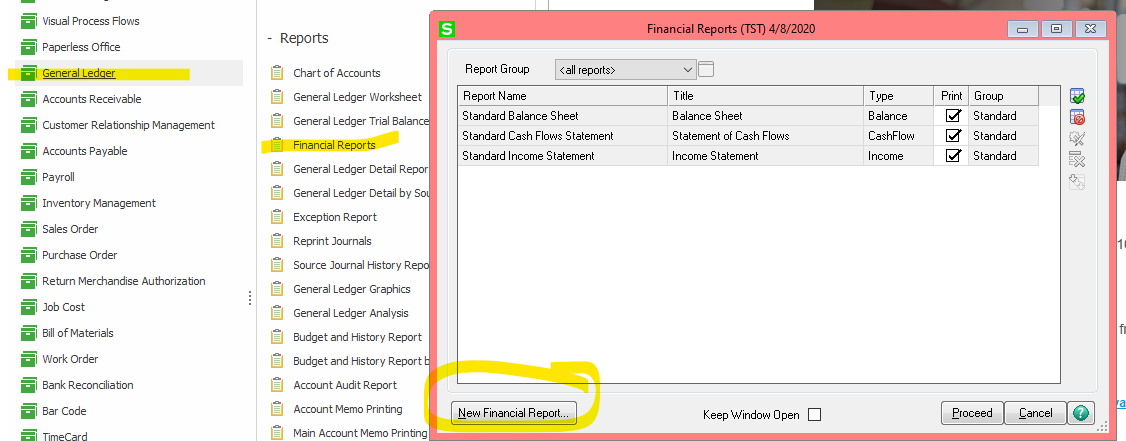
To do so, access the Financial Reports Wizard by opening General Ledger> Reports> Financial Reports.  Then, click the “New Financial Report” button on the bottom left of the screen.
Enter a report name of your choosing and then select one of the available report types:
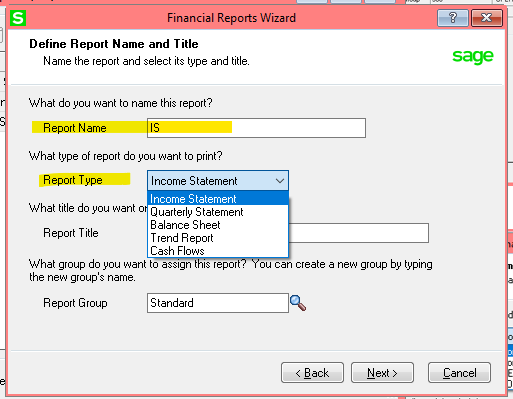
The Income Statement will display your revenue and expense by period.

The Quarterly Statement is also an income statement but will report by quarter.

The Balance Sheet will show your balance sheet accounts. (Assets, Liabilities, Equity)

The Trend Report will show income statement accounts (Revenue and Expense) for 12 months.  (Note that this is an income statement trend and there is no balance sheet trend option.  That would require Sage Intelligence Reporting.)

The Cash Flows will show how cash is generated and used in a period.

Webinar   Watch Recorded Webinar:
Sage 100 Reporting Options: Which is Best for You?
Watch Now

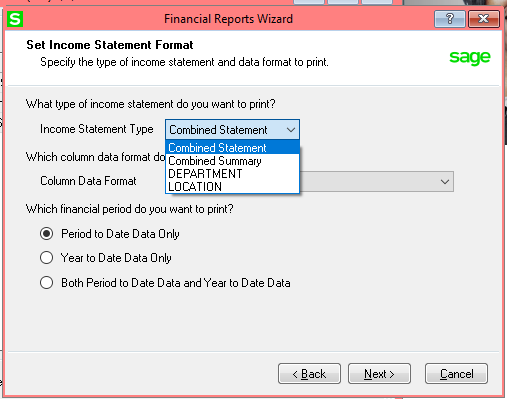
For our example, we’ll use the Report Type “Income Statement.”  You’ll notice that there are several income statement types to choose from:

Combined Statement: This is a typical income statement listing each GL account separately.

Combined Summary: You may have this option if you have more than one segment in your GL account separated by a hyphen.  (E.g. 2000-001).  This format will rollup and summarize by the first segment of your GL account.  In the case of 2000-001 this would sum all accounts between 2000-000 through 2000-999 and show the total for 2000.

My GL accounts happen to have 3 segments.  The main account – Department – Location.  E.g. 515–000–3000. For this reason, I also have “Department” and “Location” available under Income Statement Types.  Choosing one of these options would summarize and page break by department or location.  For this example, we will use the basic “Combined Statement.”
You’ll have several options for the data you would like to see displayed on this report.  Choose one of the combinations of actual, budget, variance, variance percent, prior year, etc.  See below for the full list of available options:
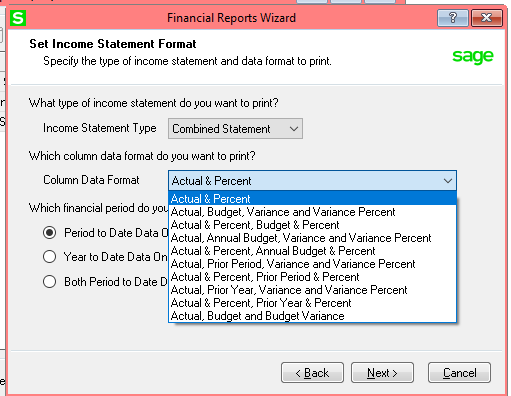
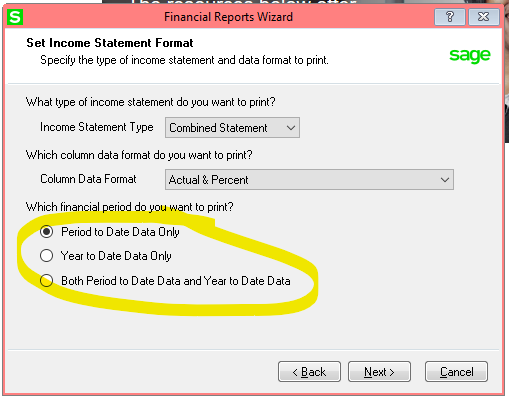
Then, select whether you want to display the current period to date, year to date, or both:
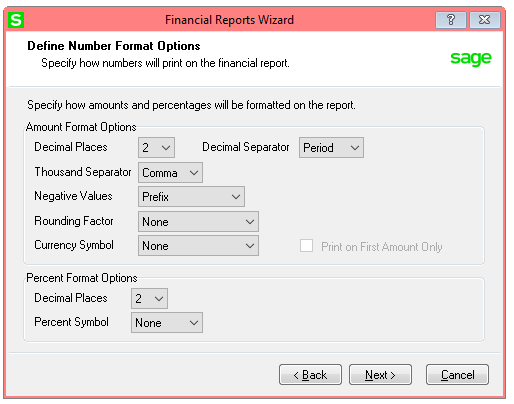
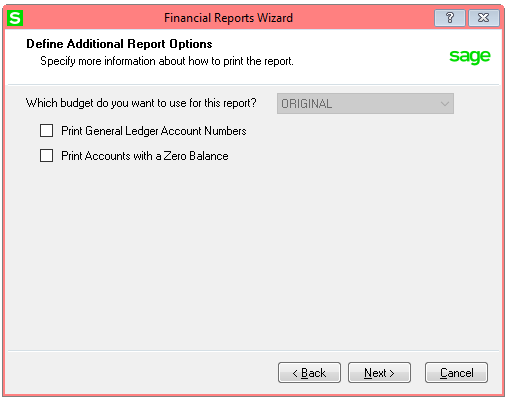
As you click the Next button to advance through the screens, you will have an opportunity to customize some features of the report such as decimal precision and currency symbols, whether to show account numbers (or just names), and whether to print zero balance accounts.
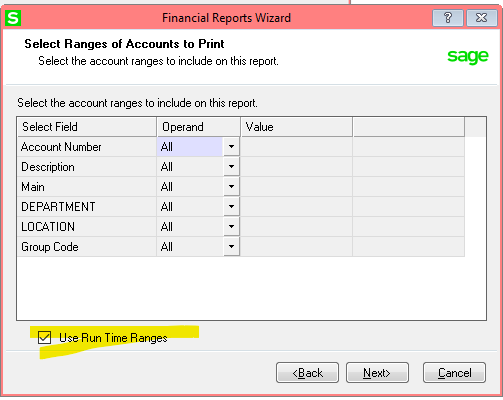
You can specify fixed filters into the report.  For example, if you wanted an income statement for only a particular location, you could enter that now.  If you want to have the flexibility of entering any filters at the time you run the report, check the box “Use Run Time Ranges.”
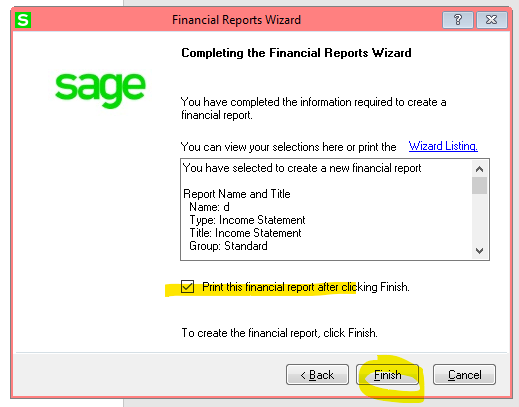
On the last screen, check the box to “Print this financial report after clicking Finish” and click “Finish” to launch the report you just created.
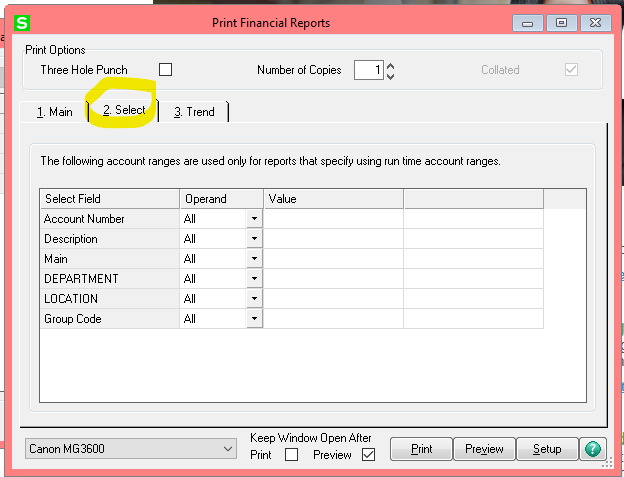
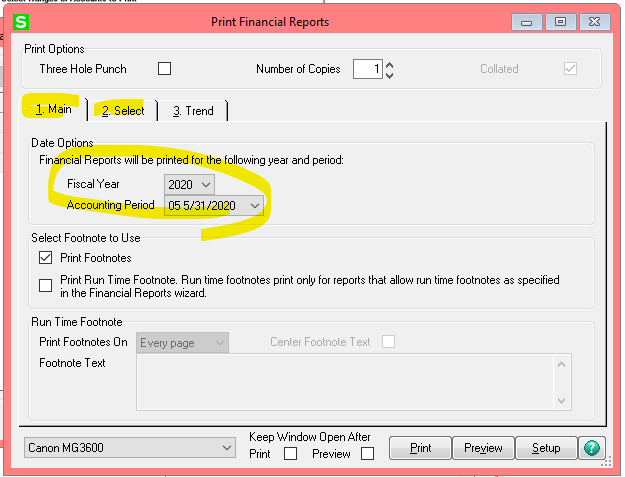
Enter the fiscal period you wish to display and use the “Select” tab if you would like to enter additional filters.  Note that the “Trend” tab is only available for Trend type reports.
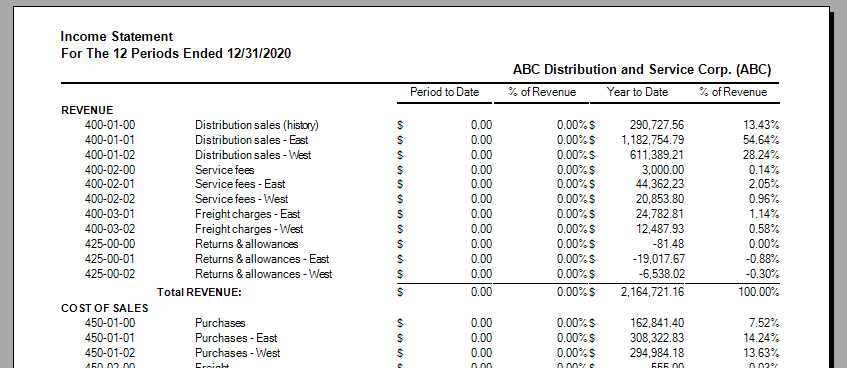
Click Preview to display the report:
If you’re looking for more advanced reporting capabilities, Sage Intelligence is a powerful reporting tool you can use to create and distribute reports.


« Return to Newsletter
  • This field is for validation purposes and should be left unchanged.
In This Issue
  • From the Desk of the Sage 100 Consulting Manager, Lisa Margolies
  • Accessing Sage 100 Remotely
  • Integrated CRM for Sage 100 – Two New Low Cost, Fixed Fee Jump Start Programs
  • Creating a Custom Financial Report in Sage 100
  • Checking Out Fixed Assets No Longer “Fixed”
  • Printer Not Activated, Error Code-41 or Error Code-30
  • Featured Consultant: Chris Wilbur Sage 100 Senior Business Analyst / Consultant
  • COVID-19 Related Cybercrime and PCI Compliance: The Importance of Securing Credit Card Data
  • Sage 100 Support

    Helpdesk:
    P: 888.494.9479
    E: helpdesk@netatwork.com

    Ready to Upgrade Your
    Sage 100?
    Fill out this form and get your free quote
    Request Upgrade Quote

    Request Sage 100
    Consulting Services

    Get Help From Our Sage 100 Consultants
    Request Services

    Sage 100 Live Webinars

    Supercharge Sage 100 with Fortis Payments
    October 8 | 2pm ET
    Register Here

    Year End CRM Evaluation: 2025 Platform Comparison Guide
    October 8 | 2pm ET
    Register Here

    Stop Microsoft 365 Attacks Before They Hit
    October 14 | 2pm ET
    Register Here

    Popular Recorded Webinars

    The Case for Hosting Sage 100 in the Cloud

    What’s New in Sage 100 v2025

    Unified Employee Self-Service Portal, Integrated Seamlessly with Sage 100

    Actionable Tips to Improve AP & AR Process for Sage 100

    Sage 100 – Live Online Training Courses

    Wide range of class topics! Browse the course calendar & register.

    Sage 100 Webinar Archive

    View our library of on-demand recorded webinars.

    Refer a friend, get a $100 Gift Card!

    Submit a Referral / Learn More!
    Do you have a friend or colleague whose company might benefit from utilizing a Net at Work service or solution? If so, refer them to us below and receive a $100 gift card or donation to your charity of choice!

    Connect With Us

    Business Applications

    • Overview
    • Software & Vendor Selection
    • ERP Implementation Services
    • ERP Migration Services
    • Cloud ERP
    • CRM
    • Employee Experience
    • ECM
    • Nonprofit Solutions

    Learning Center

    • White Papers & Guides
    • Ebooks
    • Training Courses
    • Virtual Training Courses
    • Success Stories
    • Live Webinars
    • Recorded Webinars
    • Trials

    Infrastructure Solutions

    • Managed IT Services
    • Fractional CIO & Advisory Services
    • Cloud Services
    • Cloud at Work Sage Hosting

    Support

    • Application Remote Support
    • Infrastructure Remote Support
    • Sage HRMS Remote Support
    • General Inquiry
    • Helpdesk

    Web Development

    • Services Overview
    • Magento eCommerce
    • WordPress CMS
    • Systems Integration
    • Website Managed Services
    • ERP eCommerce Integration

    Company Information

    • Why Us
    • Alliance Partnership Program
    • Women at Work
    • Diversity and Inclusion
    • Partners
    • Careers
    • News
    • Blog
    • Privacy Policy
    • Contact Us

    Additional Solutions

    • Enterprise Business Intelligence
    • Avalara Automated Tax Solutions
    • Fortis Payments
    • LeaseQuery Lease Accounting
    • Sage Fixed Assets (Sage FAS)
    • Vertex SMB Sales and Use Tax
    • Prime Foodservice Software
    • Rental 360
    • SDMO

    Industries

    • Chemicals
    • Construction
    • Discrete Manufacturing
    • Field Service
    • Food & Beverage
    • Healthcare
    • Industrial Manufacturing & Equipment
    • Medical Devices
    • Nonprofit
    • Private Equity
    • Wholesale Distribution
    Net at Work
    Net at Work (HQ)
    575 8th Ave
    New York, NY 10018

    P: (800) 719-3307
    info@netatwork.com
    Locations Across North America »
    Visit our sister companies:
    Cloud at Work - Sage Application Hosting
    Pixafy - An eCommerce Agency
    Docutrend
    WordPress Image Lightbox Plugin


    Our website uses cookies to ensure you get the best experience. Learn more.

    I Understand