Sage X3 Newsletter – December 2018
Keeping You Up-To-Date With Information About Sage X3
Tips and Tricks: Finding Tables and Field Names in Sage Enterprise Management
By: Net at Work Team
There are a couple of ways to determine what tables and fields are used in a Sage EM screen.
- Navigate to the screen containing the field you want to know what table it is from
- Start by creating a new record and navigate to the field in question
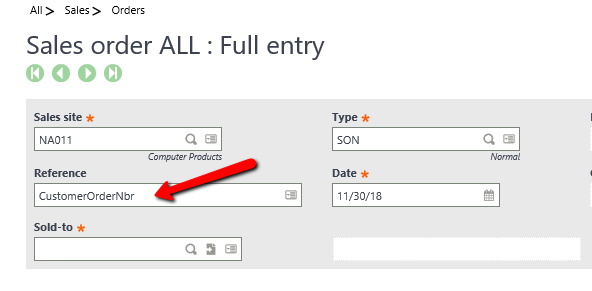
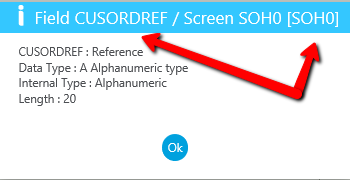
- Click Esc + F6 or click Field information in the right panel under Help>Diagnosis
- A box will display with the name of the field and screen name. Cancel the transactions and close the page.
- Navigate to Development>Script dictionary>Screens>Screens and search for the screen. The Screen dictionary will appear for the screen selected. It will have 2 tabs. The General tab will contain a list of tables associated with the screen
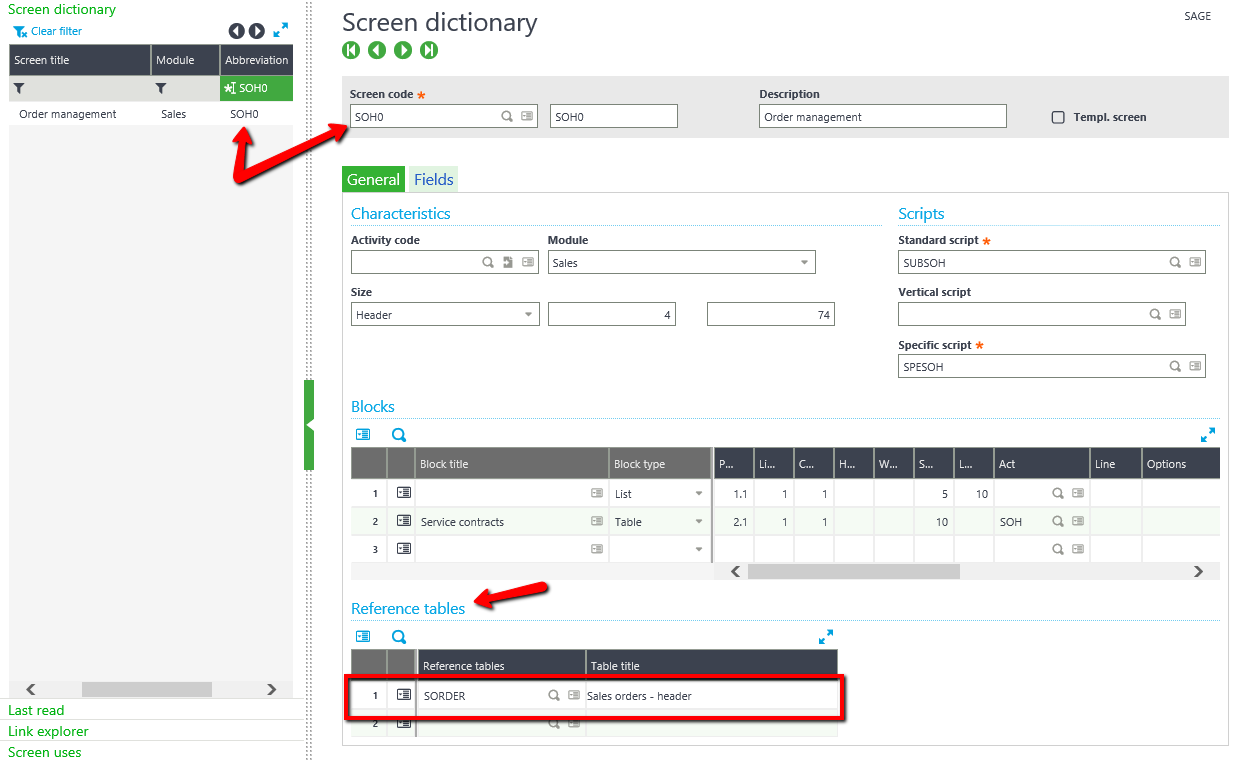
- Click on the Fields tab to display the fields contained in the screen. Note: The list of fields will contain fields entered, displayed and hidden
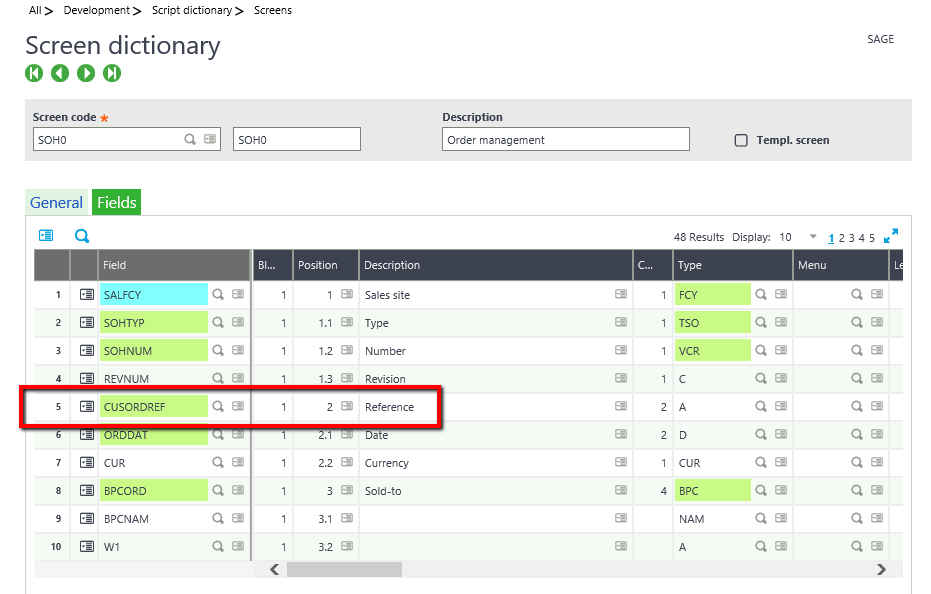
- Note: Be careful not to change anything and Cancel and then Close page
- The second way to determine tables and fields used in a screen is to navigate to Function help for a function.
- Function help appears in the right pane of a function under Help
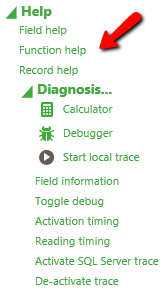
- Click Function help and the Sage EM Function help for your function will appear in the DM Online help center
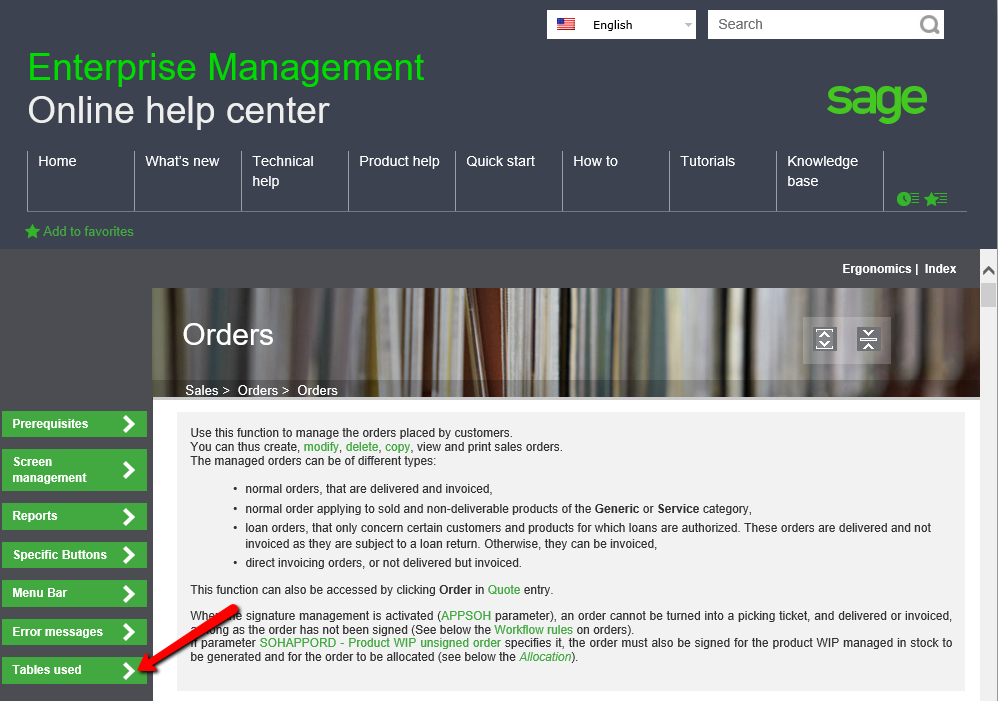
- Click Tables used, and you will jump to that section of the help. Then click “implementation”
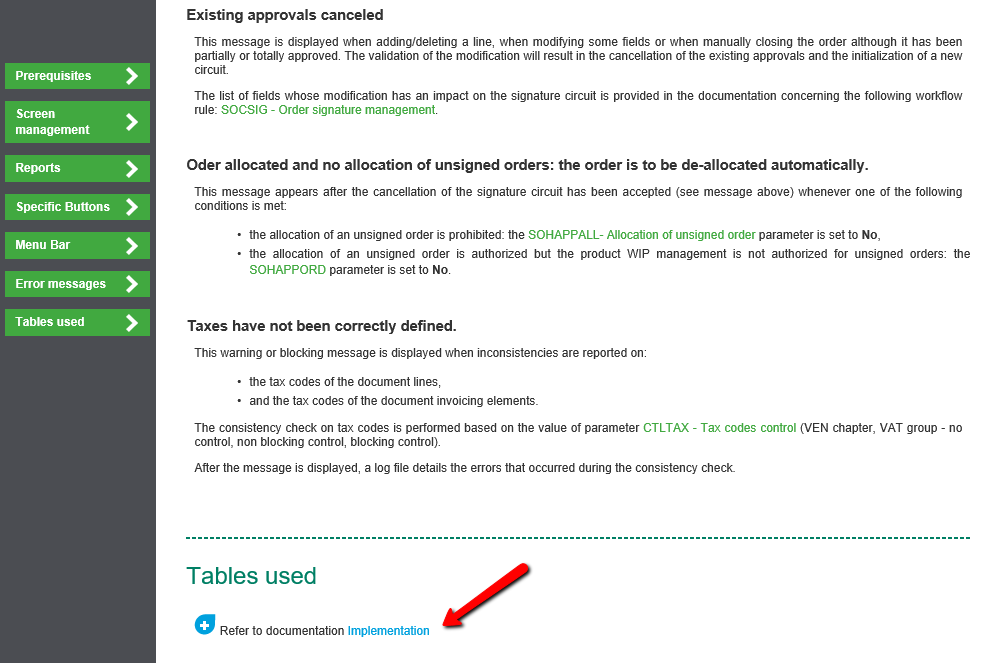
- The function Implementation will display. Click Tables used here
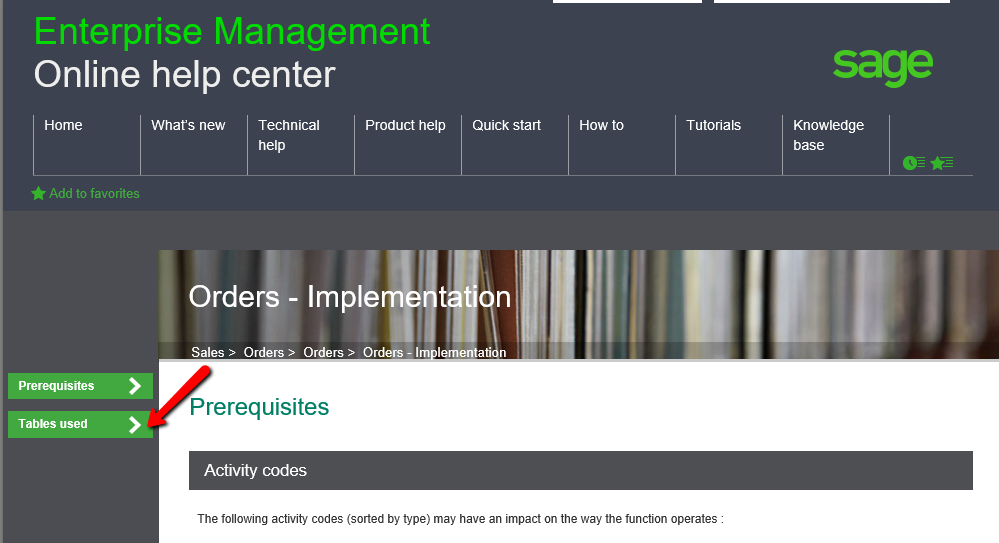
- Sage EM will jump to the Tables used section of the document
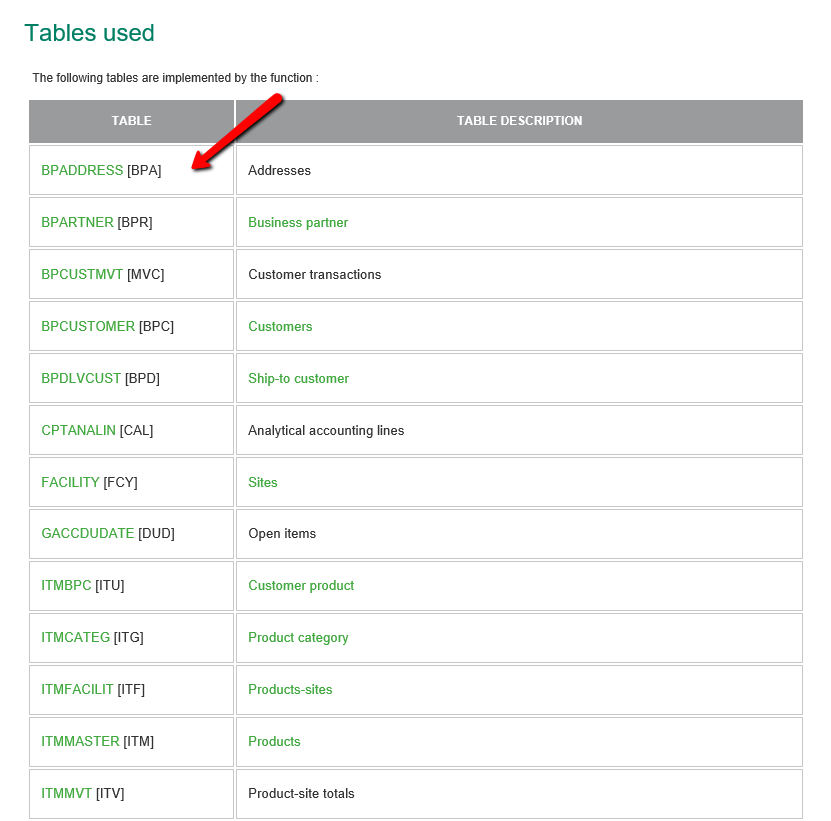
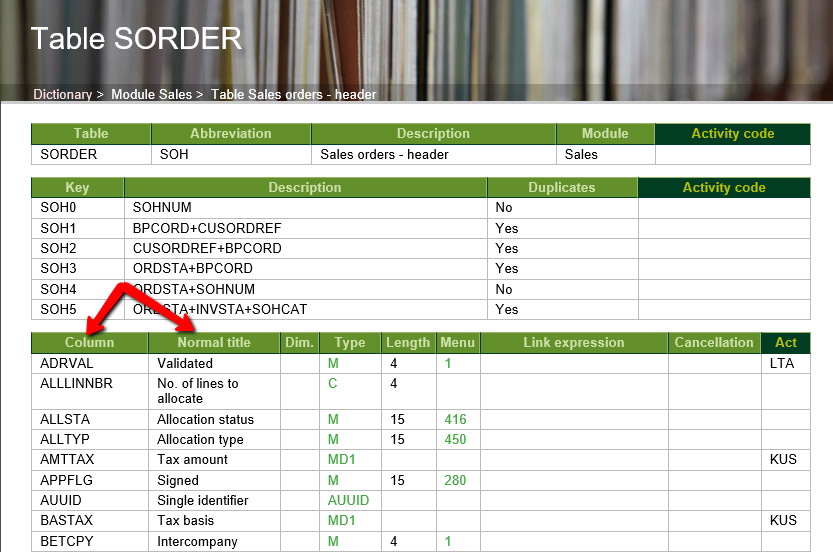
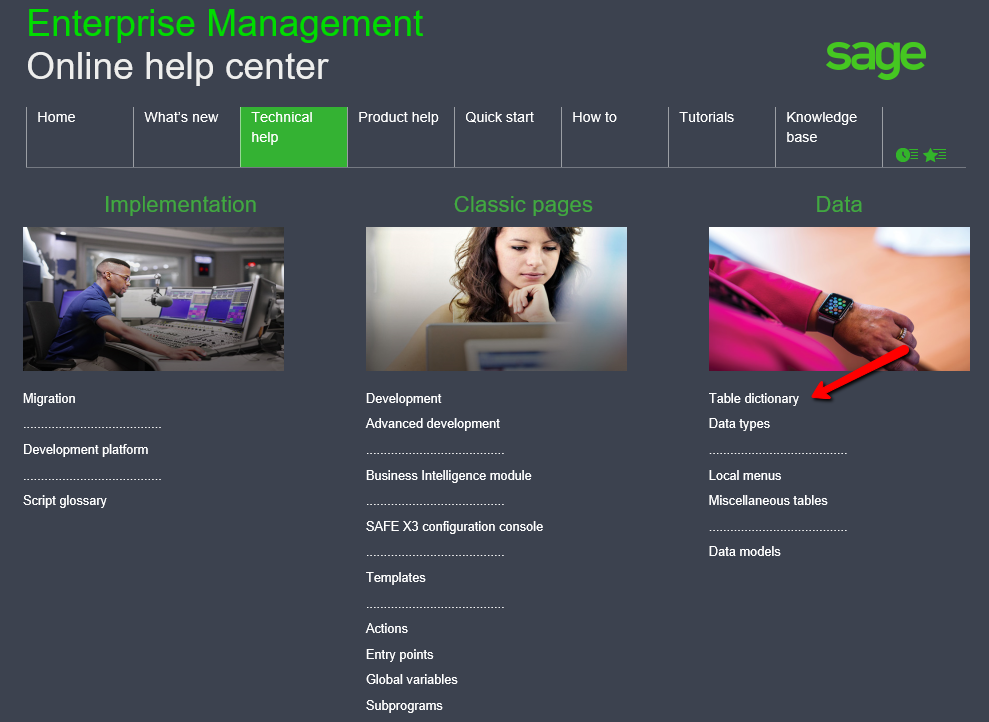
- To see the fields in a table, navigate to the Sage EM Online Help Center

- Click on Technical help

- Then click Table dictionary
- A list of the table dictionaries will display. Choose a group or scroll to a specifific table and click to open
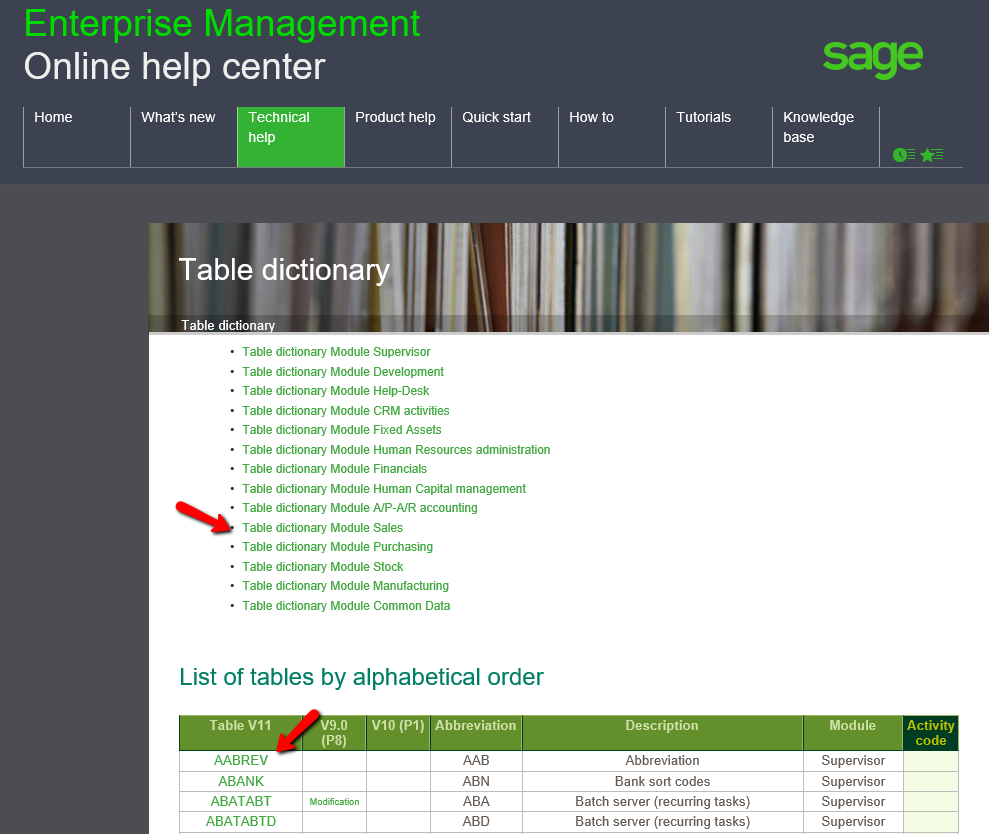
- A list of the fields in alphabetical order will appear